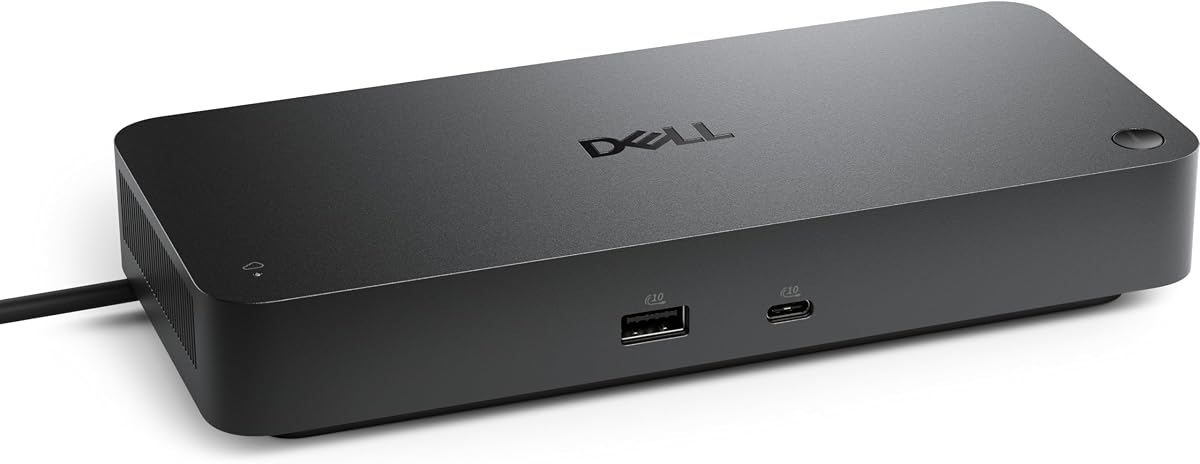
Dell Pro Thunderbolt 4 Smart Dock SD25TB4
4.2Editor score
Up to 130W Dell charging
Four 4K monitor support
Remote Wi-Fi management
Our Docking Station for Dell Pro 14 Plus guide compares 10 options for charging, displays, USB expansion, networking, portability, and IT manageability.
A docking station can turn a Dell Pro 14 Plus into a more practical desktop workstation by adding display outputs, faster wired networking, USB peripherals, and a cleaner way to power the laptop. The right model depends on your monitors, work habits, and whether remote fleet management matters.
This guide compares ten USB-C docking stations, including Dell Pro docks, a smart Thunderbolt 4 model, and a broad third-party option. We evaluated charging capacity, display support, port selection, network speed, management features, included accessories, and practical compatibility considerations.
The list ranges from straightforward 100W docks for everyday productivity to 130W smart docks designed for advanced displays and centralized management. Each review explains the strongest reasons to choose that model, alongside limitations, while current prices and availability can change over time.
4.2Editor score

4.5Editor score
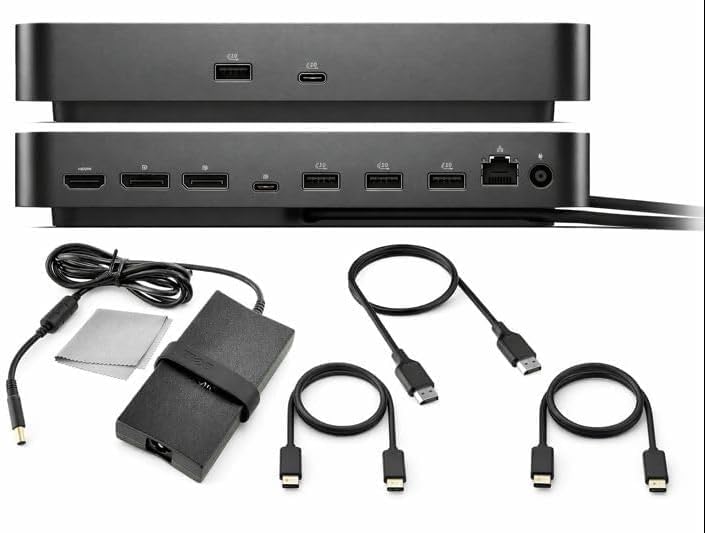
5.0Editor score
The comparison highlights the differences that matter most when connecting a Dell Pro 14 Plus: laptop charging, monitor flexibility, wired network performance, peripheral expansion, and management support.


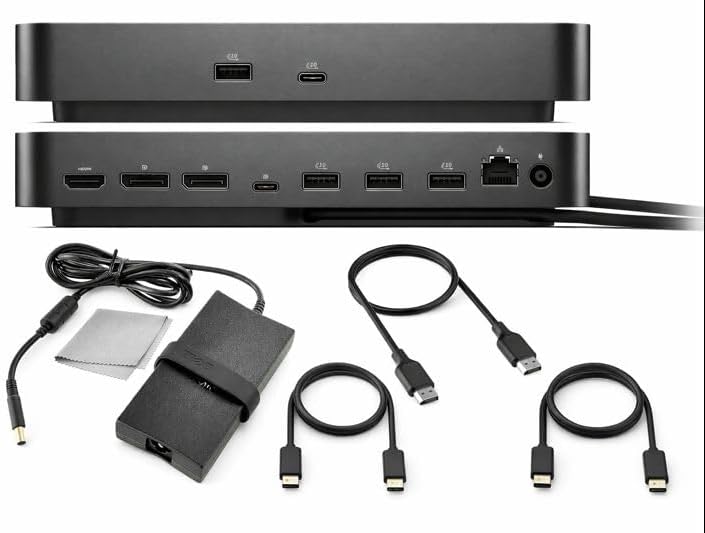


The Dell Pro Dock WD25 is the most balanced option in this guide, combining 100W power delivery with support for up to four high-resolution displays. Its 4.5 rating reflects a well-rounded feature set, and the ambidextrous USB-C cable makes it easier to arrange beneath a laptop stand or beside a monitor. The dock is designed to serve both newer Dell AI PCs and compatible non-Dell systems, although it remains especially relevant to Dell Pro 14 Plus owners.
We may earn a commission when you buy through this link, at no additional cost to you.
Its strongest attraction is the combination of display flexibility and dependable wired connectivity. The product supports native multi-display configurations through DisplayPort and HDMI, while faster USB and network speeds help reduce bottlenecks when transferring files or connecting storage. The included 100W power delivery is sufficient for a typical docked laptop workflow, and the left-or-right cable orientation means the setup does not force the laptop into a fixed position.
Dell also emphasizes manageability and sustainable construction. The WD25 belongs to a commercial docking family designed for centralized IT oversight, and its specifications mention up to 72% lower standby power consumption, at least 65% post-consumer recycled materials, and fully recycled or renewable packaging. These are meaningful considerations for offices where energy use, durability, and procurement standards matter alongside raw performance.
This is the recommendation for most Dell Pro 14 Plus users who want a capable workstation without moving into a specialized smart-dock environment. It suits dual-monitor productivity, office peripherals, external storage, and a stable wired connection. Buyers who need remote configuration across a large fleet or a much higher charging ceiling may prefer one of the premium smart docks, but for general desktop use, the WD25 offers the most persuasive mix of features.
Native support for as many as four high-resolution displays makes the WD25 suitable for users who divide work among multiple screens. DisplayPort and HDMI outputs offer practical flexibility for pairing differently sized monitors without relying on software-based workflows.
The ambidextrous USB-C cable can be routed to either side, which makes the dock easier to use with laptop stands and compact desks. Up to 100W power delivery also helps keep the desk organized by allowing the laptop to charge through the dock connection.
We may earn a commission when you buy through this link, at no additional cost to you.
The Dell Pro Smart Dock SD25 is built for organizations that need to manage docks across multiple locations without relying on the connected user. It earns a 4.5 rating and stands apart through remote management, enterprise-grade security, and support for scheduled firmware maintenance. For an individual user, these capabilities may be more than necessary, but for a business managing many Dell workstations they can materially reduce support work.
We may earn a commission when you buy through this link, at no additional cost to you.
The Dell Device Management Console is the defining feature. According to the supplied information, administrators can remotely configure, deploy, and update smart docks over Wi-Fi, even when the connected PC is unavailable. That makes the SD25 useful in offices, shared desks, hybrid facilities, and distributed teams where physically visiting each workstation would be inconvenient.
Security is another reason to consider this model. The dock supports WPA-3 192-bit encryption for Wi-Fi communication and includes tamper-resistant, hardware-based encryption for sensitive data. Scheduled off-hours updates can maintain fleetwide firmware compliance while avoiding interruptions for people who are actively working. The physical design also allows the USB-C cable to point left or right, preserving flexibility in crowded desk layouts.
Choose the SD25 if you are deploying docks as part of a managed fleet rather than simply expanding one personal desk. Its remote configuration, security, and maintenance capabilities give IT teams a much stronger operational story than a conventional entry-level dock. For a home user or a small team without centralized device management, those advanced features may not justify choosing it over the standard WD25.
Remote configuration and deployment over Wi-Fi can reduce the need for end-user participation. Firmware updates can also be scheduled outside working hours, helping administrators maintain compliance without interrupting active sessions.
WPA-3 192-bit wireless encryption and tamper-resistant hardware encryption make the SD25 particularly appropriate for organizations handling sensitive information. These protections complement the device-management features rather than replacing endpoint security.
We may earn a commission when you buy through this link, at no additional cost to you.
The Dell Pro Thunderbolt 4 Smart Dock SD25TB4 is the most technically advanced product in this roundup. It supports up to 130W charging for Dell systems, 96W for other devices, as many as four 4K monitors, dual Thunderbolt 4 data ports, 2.5GbE networking, and remote management over Wi-Fi. Its 4.2 rating is slightly lower than the leading Dell docks, but the specification set makes it compelling for demanding creative, analytical, and engineering workflows.
We may earn a commission when you buy through this link, at no additional cost to you.
Display capability is the major attraction. The dock can drive up to four 4K monitors using HDMI 2.1, DisplayPort 1.4, USB-C, and Thunderbolt 4 connections, giving users more freedom in arranging high-resolution workspaces. The dual Thunderbolt 4 ports support high-speed data, dual 4K video, and device chaining, which can reduce the number of separate connections needed for storage and other accessories.
The model also brings enterprise controls that go beyond a typical premium desk accessory. These include WPA3 encryption, PXE boot, MAC filtering, DMA protection, and a secure enclosure. Administrators can manage the dock through Dell Console and Intel AMT over Wi-Fi without requiring the PC to be present. Despite these capabilities, the product remains compact and uses 65% recycled plastic with fully recycled packaging.
This is the best choice for a Dell Pro 14 Plus user with several high-resolution monitors, demanding data-transfer needs, or a requirement for remote administration. It is less compelling for a simple one- or two-monitor office setup, where the added capabilities may never be used. Even so, it offers the strongest premium foundation for building a serious mobile workstation.
Support for up to four 4K monitors provides the screen area required by creative professionals, data analysts, and software developers. The range of display standards also makes it easier to mix monitors with different interfaces.
Two Thunderbolt 4 ports provide fast data transfer, video support, and device chaining. This can simplify a complex desk while keeping external storage and other high-bandwidth accessories connected.
We may earn a commission when you buy through this link, at no additional cost to you.
The Anker Prime Docking Station is the leading third-party alternative in this guide, with a 14-in-1 design and a 4.3 rating. It is built for users who want more physical ports than a typical office dock provides, particularly for charging multiple accessories and connecting a broad mixture of USB devices. Its compatibility with USB-C, USB4, and Thunderbolt laptops makes it a flexible desk companion for the Dell Pro 14 Plus.
We may earn a commission when you buy through this link, at no additional cost to you.
The charging system can provide 160W of aggregate output, with three USB-C ports capable of delivering up to 100W each and one USB-A port offering up to 12W. Data transfer speeds reach 10Gbps, while dual display support uses HDMI and DisplayPort. These specifications make the dock useful for power users who regularly connect external storage, multiple adapters, and more than one monitor.
There are important display limitations. The dual HDMI outputs support up to 2K at 60Hz with a DisplayPort 1.4 laptop, while a DisplayPort 1.2 connection supports 1080p at 60Hz. The product does not support a 5120 by 1440 monitor. On macOS, the two external monitor outputs are identical, and Linux is not supported, so prospective buyers should confirm their operating system and monitor needs.
The Anker model is a good fit for mixed-device workspaces that value charging flexibility, abundant ports, and fast data transfer more than advanced remote IT management. It should be considered when a Dell Pro 14 Plus user wants a broad accessory hub rather than a display-first workstation. Verify display resolution and operating-system compatibility before making it part of a permanent setup.
The 14-in-1 design consolidates displays, charging, network connections, and numerous USB accessories. This is particularly helpful for users who carry a laptop between home and office and need the same broad set of connections in both locations.
With 160W of aggregate output and several USB connections, the dock can serve a laptop and multiple smaller devices. The included upstream cable supports 100W power delivery and 10Gbps data transfer.
We may earn a commission when you buy through this link, at no additional cost to you.
The Dell Pro Dock WD25 Universal Docking Station Bundle prioritizes convenience by including the dock, a 100W adapter, and cables for HDMI, DisplayPort, and USB-C connections. Its 3.9 rating is the lowest among the ten products, but the bundle can still appeal to a Dell Pro 14 Plus user who wants a ready-to-assemble desk without tracking down several compatible accessories separately.
We may earn a commission when you buy through this link, at no additional cost to you.
The included 100W Dell AC adapter is the most important component. It supplies the power needed for a laptop connected to the dock and can support connected monitors and common peripherals. Including an original Dell cable alongside HDMI, DisplayPort, and USB-C cables removes uncertainty about which connection types are present in the box.
This package is especially useful for a first workstation setup. Rather than building a dual-monitor desk incrementally, a buyer can connect the Dell Pro 14 Plus, attach the appropriate display cables, and add the power adapter in a single purchase. The microfiber cloth is a minor bonus rather than a major technical advantage, but it is useful for cleaning screens and laptop surfaces.
The principal concern is ambiguous bundle naming. The title refers to a USB-C and USB-A universal dock and a dual display, while some Dell WD25 listings elsewhere describe up to four high-resolution displays. Buyers should inspect the detailed listing and port layout rather than assuming every WD25 package has identical capabilities. The 3.9 rating also suggests comparatively less customer consensus than the other options.
The adapter and three types of connection cable provide a practical foundation for a multi-monitor workstation. This reduces the chance that a new dock will sit unused because a required cable is still at home or in another work bag.
For a user moving from cable-only laptop use to a permanent desk, the bundled components simplify the transition. A laptop stand, external keyboard, mouse, and displays can now be connected through one central hub.
We may earn a commission when you buy through this link, at no additional cost to you.
The Dell Pro Dock WD25Z is notable for its 180W USB-C charging capability, the highest power figure stated among these products. It carries an excellent 4.9 rating and uses the official Dell manufacturer model number DELL-WD25Z. For a Dell Pro 14 Plus owner who wants ample charging headroom, the model deserves attention, particularly if several demanding USB-C peripherals are also connected.
We may earn a commission when you buy through this link, at no additional cost to you.
Higher laptop power delivery can reduce dependence on the laptop's own charger and leave the desk with a single primary power path. The WD25Z may appeal to users who routinely operate their Dell Pro 14 Plus at a high workload, attach demanding displays, or use the dock as the central connection point for numerous powered accessories.
The supplied product information is intentionally sparse. It confirms the manufacturer number, EAN, USB-C format, 180W rating, and official Dell model, but it does not enumerate the display outputs, USB port count, networking speed, or management capabilities. A buyer should therefore review the full listing and compare the physical rear-panel layout before purchase.
This is the recommendation for buyers whose priority is power delivery and who want a recent official Dell dock. Its 4.9 rating is the strongest numerical result in the guide, although ratings should not be treated as a substitute for checking technical requirements. Confirm display needs, port availability, and the included power components before making it part of a permanent workstation.
The stated 180W output gives the WD25Z a clear advantage over 100W and 130W models. That capacity can be useful when the Dell Pro 14 Plus is working continuously alongside power-hungry displays and peripherals.
The available product data does not list individual display or USB ports. Buyers should check the official model layout and confirm that it matches their monitors, storage devices, network requirements, and preferred accessories.
We may earn a commission when you buy through this link, at no additional cost to you.
The Dell Pro Dock WD25 Bundle delivers a clear and practical port configuration for a Dell Pro 14 Plus workstation. It provides 100W power delivery, one HDMI 2.1 connection, two DisplayPort 1.4 connections, and a USB-C multifunction display port. The 4.5 rating reflects a generally favorable customer response, while a three-year warranty adds reassurance for business and home-office deployments.
We may earn a commission when you buy through this link, at no additional cost to you.
Networking is a particularly worthwhile feature. Its 2.5GbE Ethernet port offers a faster wired connection than a standard Gigabit port, which can be valuable for large file transfers, network storage, and stable office workflows. The USB hub includes four USB-A 3.2 Gen 2 ports and one USB-C 3.2 Gen 2 port, giving users several places to connect storage, keyboards, mice, and other peripherals.
The included HDMI, DisplayPort, and USB-C cables help reduce setup friction, although users with unusual monitor arrangements may still require additional adapters. The dock is designed primarily around a conventional multi-display desktop rather than remote fleet administration. That makes it easier to understand and deploy for individual professionals or small teams.
This listing is a strong middle-ground choice for users who want Dell-compatible power, flexible video output, fast networking, and a long warranty. It is less expansive than the SD25TB4 and less management-focused than the Smart Dock SD25, but it covers the core requirements of a polished dual- or multi-monitor office desk.
HDMI 2.1, two DisplayPort 1.4 outputs, and a multifunction USB-C port allow users to select the best connection for each display. This is a practical way to combine differently equipped monitors in one professional workspace.
The 2.5GbE port provides a useful upgrade over basic Gigabit Ethernet for demanding transfers. It also avoids dependence on Wi-Fi when a stable wired connection is available in the office.
We may earn a commission when you buy through this link, at no additional cost to you.
The Dell Pro Smart Dock SD25 Bundle combines a 5.0 rating with 130W charging, support for up to four displays, 2.5GbE Ethernet, and a set of connection cables. It is one of the most attractive packages for a Dell Pro 14 Plus user who wants a complete desk setup rather than a bare dock. The included HDMI, USB-C, DisplayPort, and cleaning cloth make it particularly convenient for a first installation.
We may earn a commission when you buy through this link, at no additional cost to you.
The display claim supports up to four simultaneous screens, with the supplied information identifying a single 6K configuration or dual WQHD mode through HDMI 2.1 and dual DisplayPort 1.4. For office workers, this level of screen capacity can support a central document view, communication screen, and task-specific panels. For creators, it provides the basis for a broad editing or reference workspace.
The smart designation also implies a more capable platform than a basic dock, and the product listing highlights 130W power delivery, multiple USB-A and USB-C ports, 2.5GbE Ethernet, and audio output. The combination of higher charging and faster networking makes this bundle suitable for users who want the Dell Pro 14 Plus to remain connected to demanding accessories for extended sessions.
The main reason to hesitate is naming. The SD25 family includes smart-dock capabilities, but this particular bundle listing focuses its description on connectivity, charging, and included accessories rather than the remote management functions emphasized for the standalone SD25. Buyers should verify the exact display modes and management features in the product details. With that check completed, it is a highly attractive all-in-one package.
Up to four displays can turn a compact laptop into a central productivity hub. Users can dedicate screens to separate applications rather than repeatedly switching between windows on a single panel.
The stated 130W charging capacity and 2.5GbE Ethernet provide useful headroom for a powered, connected workstation. They also make the bundle more relevant to heavy accessory setups and large file workflows.
We may earn a commission when you buy through this link, at no additional cost to you.
The WD25 Dell Pro Dock is a polished 100W option that earns a 4.8 rating and includes a three-year warranty. Its port selection closely matches the needs of a professional Dell Pro 14 Plus desk: one HDMI 2.1 output, two DisplayPort 1.4 outputs, one USB-C multifunction display port, and a 2.5GbE Ethernet connection. It is a strong choice for users who value a straightforward Dell-made dock with long-term coverage.
We may earn a commission when you buy through this link, at no additional cost to you.
Power delivery reaches 100W for Dell laptops and 96W for other compatible USB-C devices. That makes it suitable for powering the Dell Pro 14 Plus through the dock while leaving room for standard peripherals. The five-port USB hub consists of four USB-A 3.2 Gen 2 connections and one USB-C 3.2 Gen 2 connection, providing a mixture of legacy and modern peripheral support.
The 2.5GbE network port is another meaningful upgrade for offices that handle substantial files or want a stable connection. DisplayPort and HDMI outputs make it easier to match the dock to a professional monitor arrangement, while the compact form should fit comfortably on most desks without requiring a separate platform.
This listing is best for individual professionals, small businesses, and home-office users who want robust ports, dependable Dell charging, and a three-year warranty. It does not advertise the remote management features found in the Smart Dock products, but not every environment needs them. A Dell Pro 14 Plus owner can get a capable workstation dock without paying for fleet-oriented capabilities.
The included three-year warranty makes the dock attractive for offices that plan to leave a workstation in place for years. The coverage adds confidence without changing the core plug-and-play character of the product.
The mix of HDMI, DisplayPort, USB-A, USB-C, and Ethernet covers the most common desk accessories. A keyboard, mouse, wired network, and one or two monitors can be organized behind a single laptop connection.
We may earn a commission when you buy through this link, at no additional cost to you.
The Dell Pro Dock WD25 Compact combines 100W charging with support for up to four WQHD displays, six USB 3.2 Gen 2 ports, and 2.5GbE Ethernet. Its 4.4 rating and extensive port count make it a flexible solution for a Dell Pro 14 Plus user who wants multiple screens and several peripherals without moving to a larger specialist platform.
We may earn a commission when you buy through this link, at no additional cost to you.
Display support reaches up to four 3440 by 1440 screens through HDMI 2.1, dual DisplayPort 1.4, and a multifunction USB-C connection. This is particularly attractive for analysts, developers, and multitaskers who need more visual workspace than a laptop screen can offer. The dock can deliver 100W to Dell systems and 96W to other compatible devices.
Peripheral capacity is another strength. Four USB-A and two USB-C ports provide multiple places for storage, input devices, and other accessories, while 2.5GbE Ethernet supports a fast wired office connection. Features such as pass-through MAC, PXE boot, power-button synchronization, and updates through Dell Display Manager add practical management for users who want more than basic plug-and-play behavior.
The design also accommodates tidy workspaces. A 0.8-meter ambidextrous USB-C cable can face left or right, and the enclosure is made with 65% post-consumer recycled plastic. Standby power consumption is listed as 72% lower, while the packaging is fully recycled. This is a particularly complete general-purpose dock for users who understand the distinction between four WQHD displays and higher-resolution four-monitor configurations.
Up to four 3440 by 1440 displays provide considerable screen space for detailed work. This makes the dock useful for spreadsheet analysis, software development, video monitoring, and other workflows that benefit from multiple panels.
Pass-through MAC, PXE boot, power-button synchronization, and Dell Display Manager updates cover several common administration needs. These functions are useful without requiring the more specialized remote deployment model of a smart fleet dock.
We may earn a commission when you buy through this link, at no additional cost to you.
The best dock depends on more than connector count. Charging requirements, monitor resolutions, operating systems, network speed, management needs, and the physical layout of your desk should guide the decision.
Charging capacity determines whether a dock can comfortably power a Dell Pro 14 Plus while accessories are also connected. Most 100W models are designed for mainstream laptop use, while 130W and 180W options provide additional headroom for demanding workloads. A higher rating does not automatically mean every connected device will receive that amount, because the dock and host system must also support the relevant power-delivery profile. Check the laptop, dock, and power adapter together rather than focusing on one number in isolation.
Display claims require careful reading because four-screen support may refer to WQHD, 4K, or a single higher-resolution display. A dock with HDMI 2.1 and DisplayPort 1.4 may still impose resolution or refresh-rate limits based on the laptop, operating system, and selected output. Compare the exact modes your monitors require, especially for color-critical work, high refresh rates, or ultrawide resolutions. The Dell Pro Smart Dock SD25 Bundle is described as supporting a single 6K or dual WQHD configuration, while the WD25 Compact emphasizes up to four WQHD displays.
Modern docks commonly use HDMI and DisplayPort because they support a wider range of monitors than an older dock with only VGA or basic USB video. A Dell Pro 14 Plus may use USB-C DisplayPort Alt Mode, but the exact generation and supported modes should be confirmed in the computer specifications. A dock offering both HDMI and DisplayPort gives users more freedom to match existing screens and avoid unnecessary adapters. Buyers should also check whether a USB-C video output supports display or only data functionality.
The number of USB ports is only half the story; speed and connector type also influence daily performance. USB 3.2 Gen 2 is useful for fast external storage, keyboards, mice, and other accessories, while USB-A preserves compatibility with devices that have not moved to USB-C. Dell options in this guide provide combinations of four USB-A ports, one or two USB-C data ports, and additional charging connections. Consider how many external drives, docking stations, webcams, and input devices need to remain connected at once.
A dock with 2.5GbE Ethernet can outperform a basic Gigabit connection, especially when moving large files between a laptop, network storage, and other workstations. It also gives users a consistent alternative to Wi-Fi in offices with crowded wireless environments. The Dell WD25, SD25 bundle, and several compact WD25 listings include 2.5GbE connectivity. Users who work primarily online and already have reliable wireless access may not need it, but heavy file workflows and shared storage environments can benefit.
Remote management matters when several people use the same dock or when IT personnel cannot easily visit every workstation. The Dell Pro Smart Dock SD25 supports remote configuration, deployment, and updates over Wi-Fi through the Dell Device Management Console, along with WPA-3 192-bit encryption and hardware-based protection. The Thunderbolt 4 Smart Dock adds deeper business controls such as PXE boot, MAC filtering, DMA protection, and a secure enclosure. These features can justify the premium models in managed corporate environments.
A capable dock should still fit comfortably beneath a monitor or beside a laptop stand. Ambidextrous USB-C cables allow the connector to face left or right, which simplifies left-handed and right-handed setups as well as compact workstations. Cable length, enclosure size, and the position of Ethernet and display sockets all affect installation. The compact WD25 uses an 0.8-meter cable and a reduced footprint, while larger multi-port designs may require more open space behind the monitor.
A dock that includes a power adapter and the right cables can be ready for use immediately. Bundle listings in this guide offer combinations of HDMI, DisplayPort, USB-C, and cleaning accessories, but package contents can vary between sellers. A three-year warranty is also useful for business deployments, and the WD25 listings with that coverage provide a clear advantage for desks that will remain in service for years. Always check the package list and return terms rather than assuming a standard dock includes everything shown in a related bundle listing.
Begin by identifying the dock's host connection and plugging it into a compatible USB-C port on the Dell Pro 14 Plus. Connect the power adapter first if the model uses a separate upstream power supply, then attach Ethernet, displays, and USB accessories. Allow the operating system to install the required display, network, and USB drivers before changing monitor arrangements or troubleshooting individual ports.
Arrange the display cables according to the output capabilities listed for the dock. Use the correct HDMI, DisplayPort, or multifunction USB-C connection for each monitor, and consult the monitor documentation for its preferred input and maximum supported mode. For a clean setup, route the ambidextrous host cable toward the side with more room and leave enough slack for repeated plugging and unplugging.
To keep the dock working well, remove unnecessary loads periodically, inspect cables for damage, and avoid placing the enclosure in an enclosed space where heat can accumulate. Clean the surface gently with a dry or lightly dampened cloth, and do not pour liquid into the ports. For a business fleet, schedule firmware updates during quiet periods and confirm that every connected laptop meets the dock's charging, display, and operating-system requirements.
The Dell Pro 14 Plus should use a USB-C port that supports data transfer, DisplayPort Alt Mode, and USB Power Delivery. Some models include multiple USB-C ports with different capabilities, so the laptop specifications should be checked before installation. The docking station may power the laptop through that connection, but display output still depends on the port supporting DisplayPort Alt Mode.
Yes, the listed docks provide USB-C power delivery, with stated outputs ranging from 100W to 180W. The most common models deliver 100W to Dell systems, while the 130W and 180W options offer more headroom. Actual charging behavior can depend on the laptop, dock, power adapter, and the number and power requirements of connected peripherals.
Several models in the guide support as many as four displays, but the maximum resolution varies. Some listings emphasize four WQHD monitors, while the SD25 bundle describes a single 6K or dual WQHD configuration, and the Thunderbolt 4 model supports up to four 4K displays. Check both the dock and monitor specifications, and verify that the operating system recognizes the intended display combination.
It can be useful when a dock includes 2.5GbE and the local network or storage equipment supports the higher speed. Large file transfers, network storage, and busy office networks may see practical benefits over standard Gigabit Ethernet. If the rest of the network only supports Gigabit speeds, the connection will operate according to the available network path.
A smart dock makes the most sense when remote management, fleet-wide firmware updates, and enterprise security are important. A home user with one Dell Pro 14 Plus can usually get a conventional 100W or 130W dock with the ports and displays they need. An organization with shared desks or multiple remote locations can benefit much more from centralized deployment and maintenance.
No. Bundle contents vary among the listings in this guide. The Dell WD25 Universal Bundle and SD25 bundle include combinations of HDMI, DisplayPort, and USB-C cables, while other listings are centered on the dock itself. Check the package details for the exact model, especially when comparing a standalone dock with a similarly named bundle.
The WD25 models in this guide emphasize 100W charging, familiar display and USB connectivity, and 2.5GbE networking on several listings. The WD25Z is identified specifically as the DELL-WD25Z model with up to 180W USB-C charging. Because the supplied WD25Z details are limited, its individual port layout should be confirmed before purchase.
The Anker Prime supports USB-C, USB4, and Thunderbolt connections and is compatible with Windows 10 and 11, so a compatible Dell Pro 14 Plus should be able to use it. Display capabilities vary by connection, however, and macOS has limitations while Linux is not supported. Verify operating-system and monitor requirements before relying on the dual-display configuration.
The Dell Pro Dock WD25 is the most balanced recommendation for most Dell Pro 14 Plus owners because it combines 100W charging, native support for up to four high-resolution displays, flexible cable routing, and commercial-grade manageability. The WD25 Compact and the SD25 bundle are strong alternatives when the exact display mode, USB port count, or included accessories matter more. For organizations, the Smart Dock SD25 and Thunderbolt 4 SD25TB4 add remote deployment and advanced security.
Prioritize the requirements that cannot be changed easily after deployment. Confirm the supported monitor resolutions, make sure the dock has enough USB ports for the accessories you regularly use, verify 2.5GbE support if your network workflow benefits from faster wired transfers, and check that the charging output meets the laptop's needs. Remote fleet management should be a deciding factor only when the deployment environment can use it.
Finally, compare the exact package and seller listing because similarly named Dell bundles may include different cables, adapters, and warranty terms. Current prices, promotions, and availability can change at any time, so review the live listing before purchasing. The right choice is ultimately the dock whose charging, display, network, and management features align with the desk you actually intend to build.