
Wacom Intuos Small
4.6Editor score
Battery-free EMR stylus
Compact drawing surface
Broad software compatibility
Included creative software
An electronic sketch pad can provide a convenient, mess-free place to draw, write, annotate, or explore ideas. The right model depends on who will use it, whether a computer is required, how much pen precision matters, and whether the goal is creative artwork, handwritten notes, or simple children's entertainment.
We compared ten products across LCD writing boards, standalone tablets, computer-connected drawing tablets, and pen displays. Our evaluation considers active area, stylus technology, pressure response, portability, included software, connectivity, display quality, and the different levels of creative flexibility each model offers.
Each review explains the most useful features, practical limitations, and ideal buyer for every product in the ranking. Ratings and specifications reflect the supplied product information, while pricing and availability can change, so readers should confirm current details before making a purchase.
4.6Editor score

4.4Editor score

4.4Editor score
As an Amazon Associate we earn from qualifying purchases.
The comparison below highlights the major differences among all ten products, including display format, stylus technology, connectivity, portability, and the environments in which each sketch pad is most effective.





The HUION Note is an unusual electronic sketch pad because it combines a normal pen, a conventional A5 notebook, and digital capture in one system. Its 4.2 rating reflects a product aimed at people who enjoy writing on paper but want searchable, shareable copies of their notes, diagrams, and sketches.
We may earn a commission when you buy through this link, at no additional cost to you.
Its standout advantage is the continuity between familiar stationery and digital storage. As writing appears on paper, the Huion Note app captures it as vector lines through Bluetooth 5.0. Users can also record synchronized audio, making the product useful for lectures, meetings, brainstorming sessions, and interviews where spoken context may be as valuable as the written page.
The app adds organization and sharing features rather than leaving every captured page buried in a notebook. Pages can be merged, split, moved, highlighted, and shared as images, PDF files, or MP4 recordings. The included accessories are also thoughtful: a magnetic pen sleeve, replacement nibs, ballpoint refills, a USB-C cable, and an A5 notebook with 50 pages.
It is best for students, professionals, and creative thinkers who prefer pen and paper but want a digital backup. The tablet mode adds broader utility, although a buyer primarily seeking a large pressure-sensitive color screen should look at a standalone tablet or pen display instead. Overall, it is a compelling paper-to-digital solution rather than a conventional graphics tablet.
The real advantage is that capture happens during ordinary writing rather than after the fact. The app can preserve handwritten work, drawings, doodles, page organization, and synchronized recordings without forcing the user to abandon the tactile routine of using a pen on paper.
Notes can be exported as images, PDF documents, or MP4 files, making them easier to send to classmates or colleagues. Replacing the notebook pages with the supplied panel and connecting to a PC also turns the device into a conventional drawing tablet.
We may earn a commission when you buy through this link, at no additional cost to you.
The XPPen Magic Note Pad combines a 10.95-inch color display, Android 14, and a paper-like X-Paper surface in a standalone sketch tablet. Its 4.4 rating makes it one of the strongest all-around choices in this guide for people who want to sketch, take notes, read documents, or annotate files without being tied to a desktop.
We may earn a commission when you buy through this link, at no additional cost to you.
The X3 Pro battery-free Pencil 2 supports 16,384 pressure levels and tilt, while the AG nano-etched surface is designed to provide more friction than a glossy touchscreen. These characteristics make it better suited to controlled line work, shading, and light drawing than a basic LCD board whose main purpose is carefree children's doodling.
Three display modes help the tablet adapt to different tasks. Natural mode provides full color for annotation, light mode creates a quieter environment for sketching, and black-and-white mode is intended for immersive reading. The 16.7-million-color display, 90Hz refresh rate, anti-glare treatment, and low-blue-light certification make it more versatile than conventional monochrome writing tablets.
At 7mm thick and 495g, the device is slim enough to carry in a bag, while the preinstalled XPPen Notes app provides a starting point without requiring a computer. Google Play access expands the range of creative and productivity apps. It is ideal for students, illustrators, and professionals seeking a capable standalone note-taking and drawing surface.
The nano-etched display adds texture and friction, while high pressure sensitivity and tilt support give the stylus considerable expressive range. The result is more suitable for deliberate illustration and note-taking than the simple line variation found on entry-level LCD boards.
Running on Android 14 means the tablet can host drawing, note, PDF, reading, and other apps without a separate computer. Full-color viewing and multiple display modes make it useful across study, work, and creative projects.
We may earn a commission when you buy through this link, at no additional cost to you.
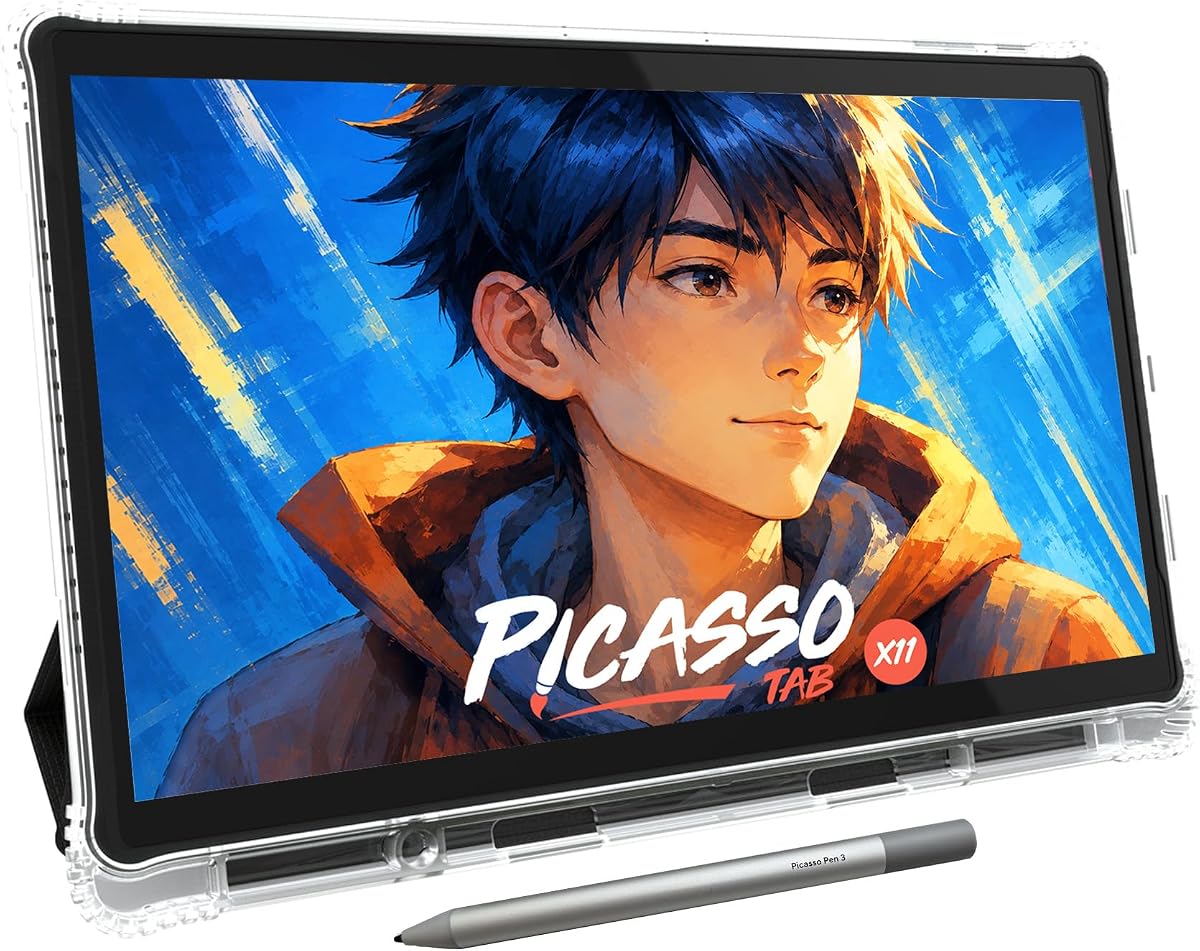
The PicassoTab X11 is a standalone 11-inch drawing tablet designed for people who want to draw, design, animate, learn, and complete schoolwork without first setting up a computer-based graphics tablet. Its 4.2 rating reflects a broad package aimed especially at new artists and users seeking guided instruction.
We may earn a commission when you buy through this link, at no additional cost to you.
Five preloaded creative applications cover sketching, painting, animation, tutorials, and guided lessons. The package also includes lifetime upgrades for Concepts and Artixo, along with a case, drawing glove, universal power adapter, and screen protector. That focus on onboarding gives it an advantage for beginners who may not know which drawing applications or accessories to choose.
The laminated 2K display is intended to reduce parallax and glare, while the upgraded stylus recognizes 4,096 pressure levels for varying line weight, shading, and illustration detail. Internally, an octa-core processor, 6GB of RAM, and 128GB of storage provide enough capacity for creative applications, schoolwork, streaming, and multitasking.
This tablet makes sense for a student, hobbyist, or family member who wants a complete portable creative station. It is less specialized than a dedicated pen display for professional editing, but its bundled tutorials, applications, and accessories reduce the barrier to entry. Buyers should confirm that the included software aligns with the subjects and formats they want to learn.
The Artixo upgrade includes step-by-step lessons and beginner exercises, while Xplore provides drawing guides and contextual help. These features make the X11 feel like a learning platform rather than simply a blank digital canvas.
The laminated 2K screen, expandable storage, and multi-core processor provide more computing capability than a basic LCD writing tablet. That makes the device suitable for a wider mix of drawing, animation, school, streaming, and multitasking tasks.
We may earn a commission when you buy through this link, at no additional cost to you.
The Kayoubi LCD Writing Tablet is a large, reusable drawing board intended primarily for children, although its simple interface can also serve older children and adults. Its 4.6 rating is among the highest in this guide, and its defining feature is the generous 14.5-inch canvas.
We may earn a commission when you buy through this link, at no additional cost to you.
The large active area gives young artists more room for drawings, stories, letters, and free-form sketches than a compact travel board. The LCD approach eliminates repeated paper use, ink, and cleanup, making it convenient for homes, cars, classrooms, and other settings where traditional art materials could create a mess.
Its controls are intentionally simple. A single-button erase function clears the screen, while a lock setting helps preserve a drawing from accidental erasure. The display is described as having no harsh blue light or glare, offering a gentler visual experience for children who may use it for extended periods.
This is a good choice for families seeking an uncomplicated, screen-based activity for a child who likes to draw. It is not the right tool for someone needing nuanced stylus pressure, layered digital artwork, or professional creative software. Its appeal lies in accessibility, a large canvas, and the ability to create without paper or ink.
The 14.5-inch surface gives children considerably more room for expansive drawings than many portable LCD boards. That makes it practical for storytelling, large shapes, practice writing, and collaborative activities at a table.
One-button erasing keeps the device understandable for younger children, while the lock protects a finished drawing. Reusing the screen reduces clutter and avoids the need to replace paper during an enthusiastic session.
We may earn a commission when you buy through this link, at no additional cost to you.
The Bravokids 10 Inch LCD Writing Tablet is designed for children ages three to eight and prioritizes colorful, uncomplicated play. Its 4.6 rating reflects a well-received approach to introducing drawing without paper, ink, or complicated software controls.
We may earn a commission when you buy through this link, at no additional cost to you.
The 10-inch color display provides enough space for letters, doodles, and simple drawings. A stylus, nail, or another hard object can produce lines whose thickness varies with pressure, adding a small amount of expressive control without requiring advanced settings. The screen can be cleared in one second using the erase button.
Portability is another strength. The board weighs 150 grams and uses rounded, durable plastic construction, making it suitable for schoolbags, travel bags, cars, restaurants, and other quiet environments. A lock key preserves the current image and reduces accidental clearing, while the battery compartment is secured with a screw for added safety around children.
Families looking for a straightforward birthday, holiday, or travel activity may find this model well suited to the task. It helps children express ideas quietly and avoids disposable paper use. However, it does not offer the precise pressure response, storage, or applications found in standalone creative tablets, so its intended audience is clearly younger users.
The colorful LCD area provides an inviting surface for drawing, writing, and storytelling. Variable line thickness gives children a simple visual reward while they experiment with pressure using the supplied stylus or another suitable hard object.
At 150 grams, the tablet is easy to carry, and its rounded housing and anti-fall design suit active use. The screw-secured battery door adds an extra layer of security in homes, classrooms, and family travel.
We may earn a commission when you buy through this link, at no additional cost to you.
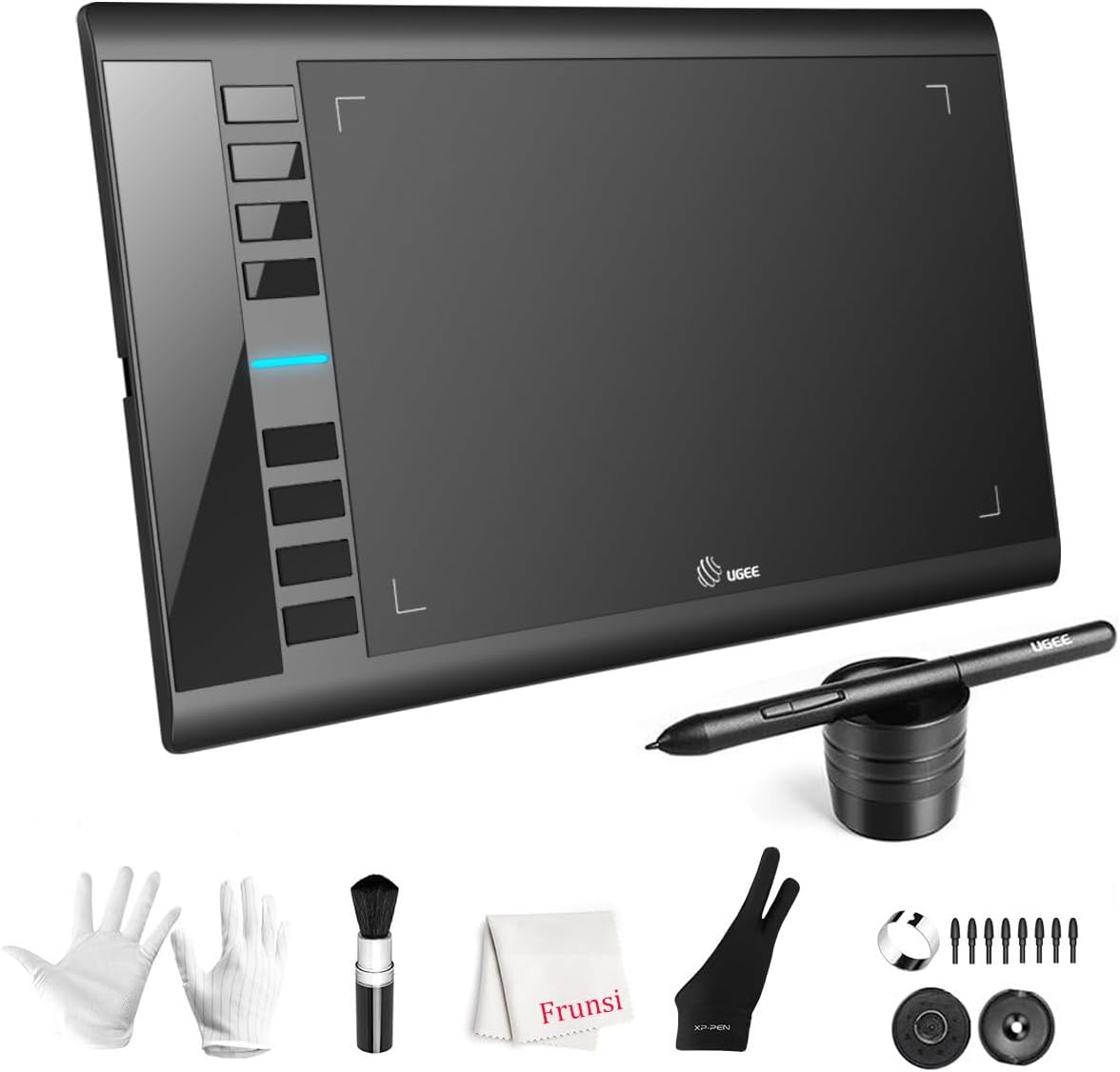
The UGEE M708 V3 is a wired graphics tablet for digital drawing, painting, photo editing, and design work on a computer. Although it does not have a built-in screen, its 4.4 rating and extensive pressure sensitivity make it a capable option for beginners and experienced users who value control and functionality.
We may earn a commission when you buy through this link, at no additional cost to you.
The 10-by-6-inch active surface offers a generous area for sketches and detailed artwork. Its papery texture supports smooth drawing, and the passive stylus registers 16,384 pressure levels. Light pressure can create sharp, fine lines, while firmer strokes produce broader marks and varied opacity for illustration or retouching.
Eight express keys along the side can be configured for tools such as erasing, zooming, scrolling, and undoing. Compatibility extends across Windows, Mac, Android, Chrome OS, and Linux environments, with support named for programs including Photoshop, Illustrator, SAI, 3D MAX, Autodesk MAYA, and ZBrush.
The device is best for someone who already works on a computer and wants a roomy drawing surface without paying for a pen display. USB-to-USB-C connectivity and included adapters simplify setup. Its main limitation is also its primary feature: there is no screen, so the user draws while looking at the computer monitor.
The 16,384 pressure levels give the passive stylus substantial control over line width and opacity. That makes the M708 useful for sketching, painting, illustration, and retouching even though the artwork appears on a separate screen.
Eight customizable express keys reduce reliance on menus for common actions. Their placement can also help streamline repetitive creative tasks for users who regularly draw with professional or hobbyist software.
We may earn a commission when you buy through this link, at no additional cost to you.
The Mafiti LCD Writing Tablet is an 8.5-inch monochrome board designed for quick notes, messages, children's drawings, and portable entertainment. Its 4.2 rating reflects a simple device whose greatest strengths are ease of use, thin construction, and the ability to use the stylus as a kickstand.
We may earn a commission when you buy through this link, at no additional cost to you.
The updated writing system is described as producing thicker lines that are easier to see than on earlier versions. Pressure changes stroke width, while a one-button erase function clears the screen. A lock-protection switch helps prevent accidental clearing, and the built-in stylus dock keeps the pen organized during storage and transport.
Power comes from a replaceable CR2016 coin-cell battery, allowing continued use without charging the entire board. The tablet is only one-eighth inch thick, making it a convenient addition to a handbag, schoolbag, or travel kit. Its monochrome screen is suitable for short notes, lists, doodles, and simple messages.
This model is a practical choice for anyone wanting an ultra-light writing surface that can be used almost immediately. It may serve as a child's travel toy, a quick reminder board, or a small household message tool. For serious illustration, color work, or document annotation, a pressure-sensitive graphics tablet would offer more capability.
The clearer, thicker writing is designed to remain visible on the monochrome LCD. A single erase button and lock switch provide straightforward control that children can understand without navigating complex menus.
The integrated stylus dock prevents the pen from being misplaced. It can also serve as a kickstand, allowing a written message to be displayed to family members, coworkers, or classmates.
We may earn a commission when you buy through this link, at no additional cost to you.
The TEKFUN LCD Writing Tablet is a colorful, reusable drawing board made primarily for children, travel, and quiet entertainment. Its 4.5 rating indicates a strong reception, with portability and a 10-inch drawing area distinguishing it from smaller writing tablets.
We may earn a commission when you buy through this link, at no additional cost to you.
Pressure-sensitive technology allows the stylus or another hard object to produce lines of varying thickness. The erase button clears the canvas, while a key lock keeps a drawing from disappearing accidentally. The screen must be unlocked before the erase control can be used, a simple system intended to reduce confusion for young users.
The board weighs 150 grams and is described as waterproof and resistant to falls. Those properties suit airplanes, road trips, restaurants, outdoor activities, and other situations where children need an engaging activity without loose art supplies. The built-in battery can support approximately 100,000 writing cycles and is replaceable for continued use.
Parents looking for a compact travel toy or an educational distraction should find the combination of color, portability, and simple controls useful. It does not substitute for a full drawing tablet because there are no advanced layers, applications, or document tools. Its value lies in delivering an accessible creative outlet with little mess or preparation.
The board gives children a reusable space for drawings and stories during flights, car rides, restaurant visits, or outdoor trips. Its light weight makes it easier to carry than a conventional tablet or laptop.
Waterproof, anti-fall construction suits frequent handling by children. The replaceable battery supports long-term reuse, while the lock feature helps preserve a favorite drawing when the board is being carried.
We may earn a commission when you buy through this link, at no additional cost to you.
The Wacom Intuos Small is a wired drawing tablet offering a refined pen-on-paper experience for illustration, painting, photo and video editing, and document markup. Its 4.6 rating makes it one of the most highly rated options here and a particularly dependable starting point for new digital artists.
We may earn a commission when you buy through this link, at no additional cost to you.
Wacom's EMR technology provides pen-like control without requiring a rechargeable stylus battery. The compact surface is smaller than the active areas offered by many of the other drawing tablets in this guide, but it creates an approachable desktop workspace that can support a meaningful range of creative work.
Its greatest strength is flexibility. The tablet can be used with software programs for drawing, painting, editing photos and videos, creating designs, and marking up documents. Registering the device also provides access to creative software and online training, helping users understand the tablet and begin working with relevant tools.
The Intuos Small is ideal for beginners, students, and hobbyists who want a proven tablet without a built-in display. It should not be selected by someone who wants a standalone notebook, pressure-sensitive color writing surface, or direct drawing on the screen. For desktop creative work, however, its pen feel and broad software compatibility are compelling.
The battery-free EMR stylus responds to pressure without requiring a charging routine. Its pen-like operation makes the transition from paper to screen more natural for people who already have drawing experience.
Registration unlocks online training and creative software access, adding guidance beyond the physical tablet. That support is particularly helpful for buyers who are unfamiliar with pressure sensitivity, canvas navigation, or digital art applications.
We may earn a commission when you buy through this link, at no additional cost to you.
The XP-PEN Artist12 is a pen display that combines an 11.6-inch Full HD IPS screen with a pressure-sensitive stylus. It must be connected to a computer, but that direct-on-screen approach gives it an important advantage over conventional tablets that require users to look away from the artwork.
We may earn a commission when you buy through this link, at no additional cost to you.
The 1920-by-1080 display covers 72% NTSC and 100% sRGB, presenting vivid colors and detailed images. The P06 passive pen recognizes 8,192 pressure levels, includes a digital eraser at its opposite end, and uses a flexible grip designed to feel stable during extended work. A multi-function holder and replacement nibs support regular use.
A touch bar and six shortcut keys can be programmed for zooming, scrolling, or application-specific commands. Compatible systems include Windows, Mac, and Linux, while named creative software includes Photoshop, Illustrator, SAI, Painter, MediBang, and Clip Studio. This makes the Artist12 relevant for illustration, animation, sketching, photo editing, 3D sculpting, education, and remote work.
It is best for a serious hobbyist or professional who wants direct screen drawing, accurate color, and customizable controls. Since it needs HDMI and USB-A connectivity, buyers should check their computer ports before purchasing. A separate converter may be required for newer systems, which is the main practical inconvenience of an otherwise focused pen-display experience.
Drawing directly beneath the pen removes the hand-eye coordination gap found on off-screen tablets. The Full HD IPS panel and broad sRGB coverage also make the Artist12 suitable for artwork and images where color representation matters.
Programmable shortcut keys and a configurable touch bar can adapt to different creative applications. The ergonomic battery-free pen, digital eraser, replacement nibs, and glove support are useful additions for extended sessions.
We may earn a commission when you buy through this link, at no additional cost to you.
The best electronic sketch pad depends on the intended activity, skill level, and need for portability. A useful purchase starts by separating simple LCD entertainment from pressure-sensitive computer tablets, standalone Android devices, and professional pen displays.
Start by matching the format to the task rather than choosing on screen size alone. A simple board is unlikely to satisfy professional illustration, while a full Android tablet may be unnecessary for a child who only wants to doodle during a trip.
Choose the highest practical pressure specification if detailed illustration or expressive line work is important. For ordinary notes and children's drawings, basic pressure-responsive lines are generally more important than a very high headline number.
Artists should prioritize a textured or paper-like surface, while students reading documents may prioritize resolution and eye-comfort features. Children primarily need a clear, durable surface that responds simply to light pressure.
List the software you expect to use before buying. If your needs center on portability, a standalone tablet may be preferable; if you already work in Photoshop, Illustrator, Clip Studio, or another desktop program, compatibility may matter more than untethered operation.
For desk-based artwork, maximize usable drawing area. For travel, notes, or children's entertainment, balance screen size against weight and thickness. A larger tablet is not automatically more comfortable if it is difficult to carry.
Verify the ports on the computer or mobile device before choosing a connected model. Also check whether a stylus is included, whether spare nibs are supplied, and whether a protective case is provided for portable use.
Write down the three activities you expect to perform most often and choose the product that supports them most directly. Extra features are useful only when they improve your normal workflow rather than adding complexity you will rarely use.
For young children, prioritize robust construction and simple controls. For adults working for hours, consider glare, screen finish, viewing modes, and the physical comfort of the included stylus.
Begin with the manufacturer's setup instructions, particularly for standalone tablets and computer-connected models. Install the required driver or application, pair the stylus or device where necessary, and test pressure, orientation, shortcut buttons, and erasing before beginning an important project. LCD writing boards generally need only a battery check and a quick test of the lock and erase controls.
Create a separate project folder and use consistent naming when saving work from a standalone tablet or pen display. Export important sketches to image or document formats and make backups in more than one location. For the HUION Note, allow each page to finish syncing before moving it or sharing the file, and use the app's organization tools to keep related notes together.
Clean the surface with a soft, dry or lightly damp cloth rather than abrasive materials or strong solvents, and avoid pressing hard on the screen. Protect portable devices with their cases or sleeves, keep styluses in their docks or holders, and replace LCD board batteries before they are depleted. For computer-connected tablets, store the cable loosely and avoid pulling it from the device at an angle.
An electronic sketch pad is a broad term that can refer to a simple LCD writing board, a standalone screen tablet, a computer-connected graphics tablet, or a pen display. A graphics tablet generally requires a computer and uses a separate monitor, while a pen display lets the user draw directly on the screen. Simple LCD boards offer fewer drawing functions but are convenient for children and casual use.
It depends on the model. The XPPen Magic Note Pad, PicassoTab X11, and Huion Note can support workflows that do not require a connected computer, although the Huion Note's core synchronization uses a mobile app. The UGEE M708, Wacom Intuos Small, and XP-PEN Artist12 require a computer for their primary creative functions.
Usually not. LCD writing boards are best for simple drawings, children's activities, handwritten messages, and pressure-variable line art. Serious digital illustration usually benefits from a larger active surface, higher pressure response, dedicated shortcut controls, a textured screen, and access to professional layered-art software.
Pressure sensitivity means the tablet detects how hard the stylus is pressed and uses that information to vary line width, opacity, shading, or brush behavior. More levels can provide finer control, but the software and stylus implementation also influence the result. For ordinary children's drawings, basic pressure response is usually sufficient.
The Mafiti LCD Writing Tablet is among the most compact choices, measuring only one-eighth inch thick, while the Bravokids and TEKFUN boards are also light enough for bags and travel kits. Among standalone devices, the XPPen Magic Note Pad weighs 495 grams and is 7mm thick, offering more applications in a relatively slim package.
It can when paired with suitable note software and an organization system. Standalone tablets support PDF annotation and handwriting apps, while the Huion Note captures ordinary writing on paper and synchronizes it to a phone. Students should also consider battery life, storage, comfort during long lectures, and whether a stylus feels natural for extended handwriting.
The styluses supplied with the Huion Note, XPPen Magic Note Pad, Wacom Intuos Small, UGEE M708, and XP-PEN Artist12 are described as battery-free. Standalone tablets themselves still use their own internal battery, while the basic LCD writing boards in this guide use replaceable coin-cell batteries rather than a rechargeable power system.
Choose a pen display when you want to draw directly beneath the stylus and value a large color screen. Choose a screenless graphics tablet when you prefer a larger active surface, a simpler setup, or a less expensive desktop workflow. Pen displays need more display space and suitable computer ports, while screenless tablets still require looking at a separate monitor.
The XPPen Magic Note Pad stands out as the most versatile standalone option, combining a paper-like 10.95-inch display, full color, 16,384 pressure levels, tilt support, and Android apps. The Wacom Intuos Small is the most approachable traditional drawing tablet, while the XP-PEN Artist12 offers direct-on-screen creation in a full HD pen display.
For children, the Kayoubi, Bravokids, Mafiti, and TEKFUN LCD boards prioritize simple controls, portability, and low-pressure recreation. The HUION Note is ideal for people who want to keep writing on real paper, and the PicassoTab X11 provides guided creative software and enough standalone power for learning, drawing, schoolwork, and entertainment.
Before purchasing, confirm the required computer, operating system, ports, applications, active area, and intended level of stylus performance. Ratings and configurations can evolve, and current prices may change, so checking the latest listing details and warranty information is an essential final step.