
Logitech M240
4.4Editor score
Up to 18-month battery
90% quieter clicks
Works with iPadOS
Our External Mouse for iPad guide compares ten wireless options for portability, battery life, quiet clicks, seamless connectivity, precision, and productivity.
An external mouse can transform an iPad from a touch-first tablet into a more practical productivity tool for writing, browsing, research, presentations, and creative work. The best choice should pair reliably, remain comfortable during extended sessions, and be small enough to carry without turning everyday travel into a burden.
This guide compares ten external mice for iPad using the features and compatibility information available for each model. We focus on connection methods, portability, shape, click noise, battery behavior, cursor precision, multi-device support, and the extra functions that can make a mouse useful beyond basic pointing and clicking.
Each review explains who the mouse suits best and where its compromises may matter. The three leading selections cover a polished everyday option, a practical budget-oriented choice, and a premium foldable design. Product details and availability can change, so confirm the current listing and your iPad's requirements before purchasing.
4.4Editor score

4.7Editor score

4.2Editor score
The comparison highlights each mouse's core connection, portability, power, and control features so you can quickly identify the model that best matches your iPad workflow.
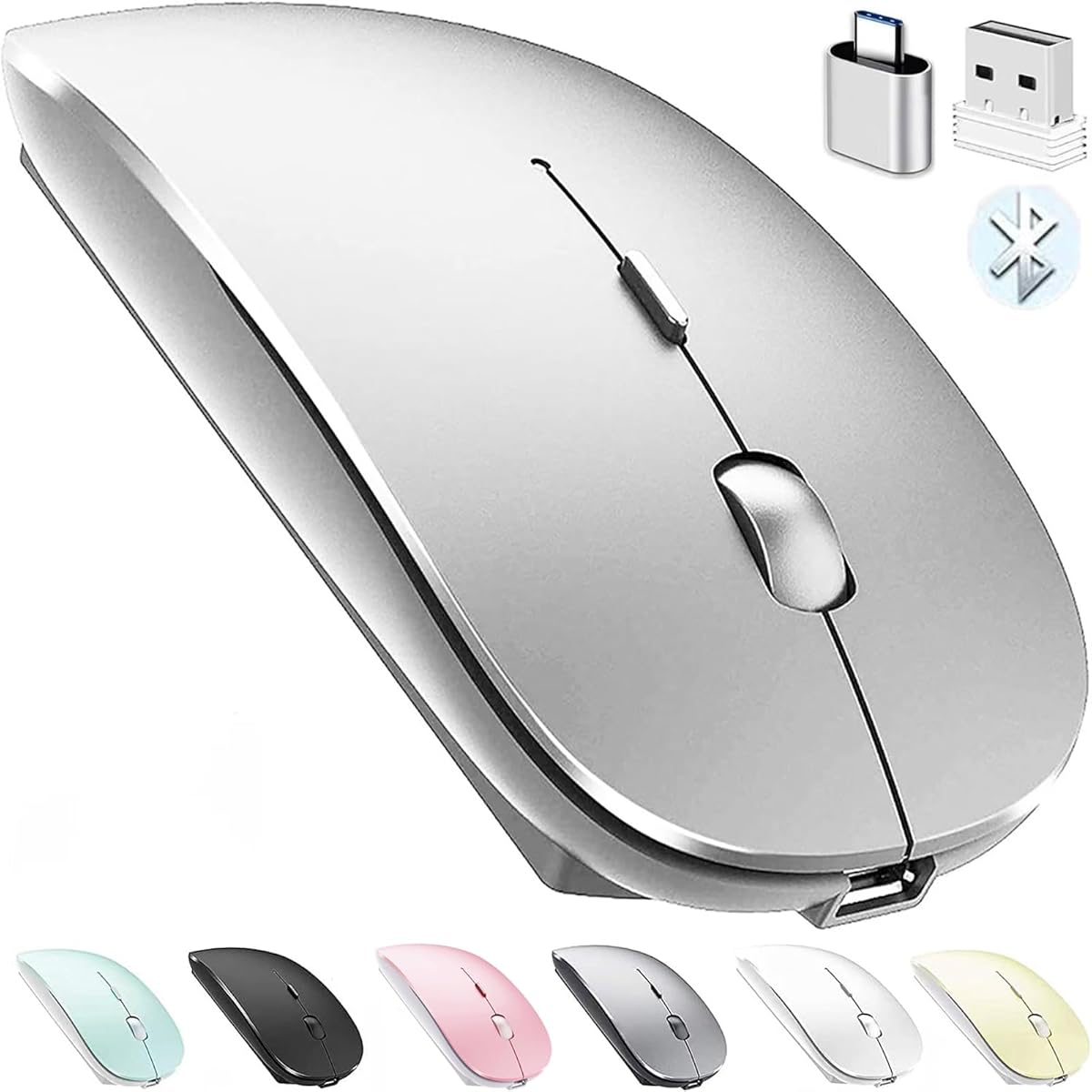


The PEIBO Bluetooth Wireless Mouse is a flexible option for people who want one mouse to work with an iPad, a computer, and other compatible equipment. Its listed customer rating is 4.3 out of 5, and its strongest attraction is the combination of Bluetooth 5.2, Bluetooth 3.0, and 2.4GHz USB connectivity. The included USB-C adapter broadens the options for devices without a standard USB-A receiver port.
We may earn a commission when you buy through this link, at no additional cost to you.
Three sensitivity settings—800, 1200, and 1600 DPI—give users a practical range for browsing, document editing, and more controlled pointer movement. The optical tracking system is described as responsive and precise, while automatic sleep after eight minutes of inactivity helps conserve the lithium-polymer battery. A press of any button wakes the mouse when it is ready for another session.
The mouse also emphasizes portability and reduced acoustic distraction. Its pocket-sized proportions suit students, travelers, and hybrid workers, while the mute design can be useful in shared offices, libraries, and classrooms. The trade-off is that the device is not presented as a premium sculpted mouse, and its connection setup involves more modes and accessories than a simple pair-and-play design.
This is a good selection for an iPad user who also alternates between Macs, Windows PCs, Chromebooks, and other Bluetooth-capable hardware. Those who want a simple mouse for only one tablet may prefer the Logitech models, but the PEIBO's adjustable DPI, multiple wireless methods, and included USB-C adapter make it especially flexible for mixed-device setups.
Bluetooth and 2.4GHz modes let you choose between cable-free pairing and a stored nano receiver. The supplied USB-C adapter also makes it easier to use the receiver with compatible modern computers.
The compact body, skin-like surface coating, and muted clicks are aimed at users who carry a mouse between locations. It is especially relevant to frequent iPad travelers who want less bulk than a full-size desktop mouse.
We may earn a commission when you buy through this link, at no additional cost to you.
The KLO Rechargeable Mouse offers an unusually broad set of ways to connect, making it a strong candidate for an iPad owner who alternates among Apple devices, Windows systems, and other computers. It has a 4.3-out-of-5 rating and supports Bluetooth 3.0, Bluetooth 5.2, 2.4GHz USB-A, and 2.4GHz USB-C through a dual-port receiver arrangement.
We may earn a commission when you buy through this link, at no additional cost to you.
Its built-in lithium-polymer battery can be charged through the supplied USB cable instead of being replaced. The stated charging time is approximately two to three hours, while expected use spans roughly seven to 30 days depending on activity. Automatic sleep activates after five minutes of inactivity, helping reduce unnecessary power consumption during short breaks.
The mouse is designed to be quiet, with click noise described as reduced by as much as 96% compared with other mice. Its contoured, lightweight shell is intended to support longer sessions, and three DPI choices provide control over pointer speed. The main drawback is that four connection methods and a rechargeable setup create a slightly more involved experience than a simple Bluetooth mouse.
The KLO is best for a user who values connection flexibility and wants to avoid disposable batteries. It is particularly attractive if you regularly move between an iPad, a MacBook, and a Windows machine. If you work with only one iPad and prioritize effortless setup, a dedicated Bluetooth model may be more convenient.
A built-in rechargeable cell removes the need to carry spare batteries. Charging over a USB cable also fits well into a workspace where an iPad charger and other cables are already carried.
The quiet click mechanism, contoured shape, and selectable pointer speeds suit offices, study areas, and travel. It helps when you want a comfortable mouse without the repeated clicking noise of a conventional model.
We may earn a commission when you buy through this link, at no additional cost to you.
The Logitech M196 is a straightforward compact mouse for people who want an iPad accessory without a complicated setup. It carries a 4.5-out-of-5 rating and uses pair-and-play Bluetooth, so no USB receiver or dedicated port is required. The mouse is also positioned as a general-purpose option for Apple, Windows, and Chromebook devices.
We may earn a commission when you buy through this link, at no additional cost to you.
Its ambidextrous, contoured shape supports either hand, while the lightweight housing is designed to fit easily into a bag. The M196 includes one AA battery and is advertised for up to 12 months of use, aided by an automatic sleep feature. Precise line-by-line scrolling and optical tracking make it suitable for everyday productivity and learning tasks.
Logitech states that the plastic components contain certified post-consumer recycled material, with different percentages applying to the available colors. The trade-off is a deliberately simple design: there are no listed adjustable DPI buttons, multi-device channel controls, or premium sculpted palm support. Users who require a mouse specifically for a particular iPad case may also need to consider case clearance.
The M196 is an excellent choice for students, travelers, and casual iPad users who value straightforward operation. It is equally suitable for anyone building a portable desk around a tablet. Choose it when simplicity, a familiar brand, and a long advertised battery life matter more than adjustable sensitivity or advanced switching features.
Pair-and-play Bluetooth keeps the setup uncluttered, which is valuable when your iPad has limited ports. A compatible computer or tablet and an enabled Bluetooth connection are the central requirements.
The symmetrical shell accommodates both hands without forcing a specific grip. Its compact dimensions and light weight make it easy to move between a desk, a library, and a shared workspace.
We may earn a commission when you buy through this link, at no additional cost to you.
The Logitech M240 is a particularly convincing all-rounder for iPad users who spend time in libraries, classrooms, offices, or shared homes. It has a 4.4-out-of-5 rating and focuses on the qualities that matter in a portable mouse: quiet operation, simple Bluetooth pairing, reliable range, and exceptionally long battery life.
We may earn a commission when you buy through this link, at no additional cost to you.
The M240's buttons are described as reducing click sound by 90% while retaining a familiar click feel. An energy-saving auto-sleep function supports an advertised battery life of up to 18 months. Its long-range Bluetooth connection reaches up to 10 meters, allowing the mouse to remain on a desk while you move around with the iPad.
Compatibility is another strength. The listed operating systems include Windows, macOS, Linux, ChromeOS, iPadOS, and Android, and the mouse carries Works with Chromebook certification. The trade-off is that it does not offer physical DPI adjustment or a display for changing settings, so control is limited to the standard pointer behavior.
This is our best budget pick because it addresses core mobile productivity needs without charging a premium for elaborate controls. It is well suited to students, travelers, and everyday multitaskers. Users who need programmable sensitivity or instant switching among several devices should look to the more specialized alternatives in this guide.
Reducing click noise helps during online classes, meetings, and quiet work sessions. The mouse preserves a conventional tactile response, which may be more reassuring than a nearly silent alternative for users accustomed to standard buttons.
The long advertised runtime and automatic sleep behavior make this a low-maintenance companion for an iPad. It is especially appealing for students or travelers who do not want to carry replacement batteries for routine use.
We may earn a commission when you buy through this link, at no additional cost to you.
This Wireless Bluetooth Mouse is explicitly designed around iPad and other Apple-device use, with compatibility extending to MacBooks, iPhones, iMacs, and tablets. Its customer rating is 4.3 out of 5. It also supports Bluetooth and 2.4GHz connectivity, so a single device can cover wireless iPad work and plug-and-play use with compatible computers.
We may earn a commission when you buy through this link, at no additional cost to you.
At 60 grams and 11 by 5.8 by 2.7 centimeters, the mouse is noticeably compact. A rechargeable lithium battery can support more than 30 days of typical use, and automatic sleep engages after ten minutes of inactivity. The skin-friendly coating and adjustable DPI levels of 800, 1200, and 1600 support both general browsing and more controlled tasks.
There is an important compatibility note. The Bluetooth function requires macOS 10.10 or later and iOS or iPadOS 13 or later. The instructions also call for enabling Assistive Touch under the accessibility settings, which is necessary for using the mouse with an iPad or iPhone. Users expecting immediate touch-style cursor access should account for that extra step.
This mouse is a good match for an iPad-focused user who wants a tiny accessory and regularly moves between Apple hardware. Its low weight, rechargeable design, and sensitivity controls are meaningful advantages. However, those who want the most effortless connection should consider a model whose product information does not require a specific accessibility setting.
The low profile and light body reduce the space and weight added to a mobile kit. Rounded edges and a coated surface help maintain a comfortable grip during browsing, writing, and document review.
Three DPI levels make it possible to move between rapid web navigation and more deliberate pointer placement. That range is useful when moving between an iPad's large display and a smaller computer screen.
We may earn a commission when you buy through this link, at no additional cost to you.
The SABLUTE Mouse is built for users who divide their attention among an iPad, a MacBook, and another computer. It has a 4.4-out-of-5 rating and can connect to three devices through two Bluetooth 5.2 channels and a 2.4GHz connection. Switching between those channels takes only seconds according to the product information.
We may earn a commission when you buy through this link, at no additional cost to you.
Its rechargeable design is another major advantage. A full charge takes about two hours and is advertised to provide up to 70 hours of use. The front USB-C port allows charging while the mouse remains in use, reducing downtime when the battery gets low. The package includes a USB receiver and USB-C adapter for broader computer compatibility.
SABLUTE describes a slim 1.1-inch profile and a weight of 60 grams, so the mouse should fit comfortably into a laptop sleeve or small travel bag. Three sensitivity levels—1200, 1600, and 2000 DPI—cover browsing, office work, and finer pointer control. Quiet operation further improves its suitability for shared environments.
This is one of the strongest choices for a mobile professional who regularly switches among devices. The combination of compact dimensions, quick channel changes, and charge-while-use convenience is especially useful for iPad-based workflows. If you only need one device and prefer a simpler setup, a basic pair-and-play mouse may be easier to manage.
Separate Bluetooth channels and a 2.4GHz option reduce the need to keep multiple mice in a bag. The ability to change connections quickly supports transitions between writing on an iPad and working on a computer.
Charging through the front USB-C port while the mouse is active is a thoughtful convenience. It helps when battery levels run low during a long travel day or a full working session.
We may earn a commission when you buy through this link, at no additional cost to you.
The Gizdot-S1 distinguishes itself with a feature usually found in software rather than a physical mouse: a built-in jiggler mode. It has a 4.4-out-of-5 rating and is designed for users who want to keep an iPad or computer awake during meetings, classes, presentations, downloads, or extended light multitasking.
We may earn a commission when you buy through this link, at no additional cost to you.
The jiggler is activated by holding the DPI button for three seconds, while a short press changes among 800, 1200, and 1600 DPI. This hardware implementation means the feature does not depend on a separate utility. Connectivity is also extensive: Bluetooth 5.2, Bluetooth 3.0, and 2.4GHz connections through USB-A or USB-C are supported.
Its 850mAh rechargeable battery is advertised for up to 90 days on a two-to-four-hour charge. Light and deep sleep modes engage after eight and 30 minutes of inactivity. The mouse works across modern Apple, Windows, Android, Linux, and ChromeOS environments, with no extra driver listed as necessary.
The Gizdot-S1 is best for iPad users who value flexible connectivity and frequently participate in virtual meetings or online classes. Silent buttons and a quiet wheel help in shared settings. The broad feature set is a clear strength, although buyers who only need a conventional pointer may find the jiggler unnecessary and the controls busier than those of a simpler model.
The integrated jiggler can prevent an idle screen from going to sleep during selected tasks. Because it operates from the mouse itself, it is especially convenient when software-based movement controls are inconvenient to configure.
Bluetooth and both USB-A and USB-C receiver options make the mouse adaptable to varied equipment. This is useful for owners who move between an iPad, a MacBook, a Windows laptop, and shared desktops.
We may earn a commission when you buy through this link, at no additional cost to you.
The HOTDREAM Rechargeable Mouse has a 4.5-out-of-5 rating and presents a simple, flat profile for people who want a minimal pointer for an iPad or another compatible device. Its product information identifies Bluetooth operation, rechargeable lithium-polymer power, adjustable optical tracking, and a design intended for offices, meetings, libraries, and travel.
We may earn a commission when you buy through this link, at no additional cost to you.
Three DPI levels—800, 1200, and 1600—provide more control than a fixed-sensitivity mouse. The mute button reduces click noise, and the flat housing is easier to slip into a bag than a full-size desktop model. A USB-C charging point and an estimated three-hour full-charge time support regular use, while sleep mode reduces energy consumption during inactivity.
The main concern is conflicting compatibility language. The title includes Mac and MacBook, while the supplied bullet points include Windows, iPad, iPhone, Android, and Linux but also state that the mouse is not for Mac or MacBook. The description advises updating an iPad or iPhone before connecting and contacting support if pairing fails. Buyers should therefore confirm the exact operating-system requirement for their device.
This mouse may appeal to iPad users who prioritize portability, adjustable sensitivity, and a rechargeable form. Its understated design is suitable for travel and quiet environments. However, the ambiguity around Mac support and the need for up-to-date tablet software make it a less confident recommendation than models with clearer iPadOS compatibility statements.
The low-profile construction takes up little room and is convenient to carry alongside an iPad. It suits users who want a mouse that looks and feels closer to a travel accessory than a large office peripheral.
The three selectable tracking levels help adapt the pointer to different screen sizes and task intensities. This is useful for detailed editing, research, and general navigation across an iPad's larger display.
We may earn a commission when you buy through this link, at no additional cost to you.
The Logitech Mobi Fold is the premium portability choice in this guide because it solves the space problem more decisively than a conventional compact mouse. It has a 4.2-out-of-5 rating and folds into a small, thin form that can slip into a pocket or bag. Unfolding powers it on, while folding turns it off.
We may earn a commission when you buy through this link, at no additional cost to you.
Despite its folding structure, Logitech states that it can reduce muscle strain by 22% compared with a laptop trackpad. It supports Bluetooth across Windows, macOS, ChromeOS, Android, and iPadOS, and Easy-Switch lets the user hop among three devices. Swift Pair and Fast Pair certification further support convenient setup across different platforms.
Tracking is another strength. The mouse offers 4K DPI and Adaptive Touch Scrolling for line-by-line accuracy and fast navigation. Its quiet clicks suit public environments, while a full charge is advertised to last up to one month. A one-minute charge can provide up to 22 hours of use, though a USB-C charging cable is not included.
The Mobi Fold is ideal for frequent travelers who prioritize the smallest possible footprint and polished industrial design. It also suits users moving among an iPad, MacBook, and Windows computer. The trade-off is that the ultra-thin folding format may not provide the same palm support as a full-size ergonomic mouse, making it best for lighter, portable workflows.
The folding mechanism transforms a full-size pointer into a compact travel accessory. It is particularly useful for people who carry an iPad with minimal room and prefer not to keep a rigid mouse in a bag.
Three-device Easy-Switch support, high tracking sensitivity, and fast charging make the mouse suitable for intensive mobile work. The combination is useful for a professional moving quickly between a tablet, laptop, and desktop.
We may earn a commission when you buy through this link, at no additional cost to you.
The Logitech Pebble i345 is our Editor's Choice because it combines a strong 4.7-out-of-5 customer rating with a design explicitly intended to complement an iPad. Its extra-slim body, rounded corners, and clean lines create a more cohesive mobile workspace than a conventional desktop mouse.
We may earn a commission when you buy through this link, at no additional cost to you.
The Pebble is designed to be carried easily, with a light shape that fits into a pocket or bag. Its soft, rounded sides are intended to sit naturally in the hand, while the streamlined profile remains comfortable during browsing, writing, and other iPad tasks. The understated off-white appearance also coordinates naturally with many tablet setups.
Tracking is another major strength. Logitech states that the mouse operates quickly and accurately on a café table, desk, or even bed covers, making it adaptable to environments where a rigid mouse pad is impractical. The trade-off is that the supplied information does not highlight adjustable DPI, programmable controls, multi-device switching, or a built-in jiggler.
This mouse is an excellent recommendation for most iPad users who want a simple, attractive pointer for travel or everyday productivity. It is especially convincing when aesthetics and surface flexibility matter. Users operating across several devices or requiring precision settings should compare it with the M240, SABLUTE, or Gizdot-S1, which offer more control-focused features.
The Pebble's slim profile, rounded geometry, and coordinated appearance were created with tablet use in mind. It avoids the visual bulk of a full-size office mouse and slips easily into a mobile carrying setup.
Multi-surface optical tracking lets the mouse function on tables, soft materials, and other everyday surfaces. This flexibility is valuable for iPad use in cafés, lounges, bedrooms, and shared workspaces.
We may earn a commission when you buy through this link, at no additional cost to you.
The right iPad mouse depends on how you work, where you use it, and which devices you need to control. Connection reliability, size, power, and tracking should be considered together rather than as isolated specifications.
For most iPad users, Bluetooth is the cleanest connection because it avoids a receiver and leaves the tablet's charging port available for other accessories. Confirm that the mouse supports iPadOS and the Bluetooth version supported by your device. Some models also support older iOS or iPadOS releases, while others explicitly require version 13 or later. The provided iPad mouse information also notes that certain models need Assistive Touch enabled before an iPad can use an external pointer.
Choose a mouse with clear pair-and-play instructions and compatibility that explicitly includes iPadOS. For mixed-device use, look for multiple Bluetooth channels or a 2.4GHz receiver as well. Extra connection modes provide flexibility, but they are only useful if you understand how to switch among them.
A mouse that feels excellent at a desk may be inconvenient in a bag. Compact models are usually easier to carry between home, office, and school, while ultra-thin folding designs take up the least room. Consider the body height, weight, and whether you prefer a symmetrical shape for either hand or a sculpted shape with fuller palm support.
For frequent travel, prioritize a light body, rounded edges, and a shape that will not press uncomfortably against other bag contents. For long stationary sessions, comfort may matter more than a minimal profile. A slim mouse can also be easier to use around a propped-up iPad because it occupies less desk space.
A mouse that runs for months on replaceable cells can be the simplest option for occasional users, while a rechargeable mouse is more convenient for regular work. Compare stated battery duration, included batteries, charging time, and sleep behavior. Rechargeable models should be charged from a standard source that matches the connector, and some premium travel mice require a separate charging cable.
Automatic sleep is valuable because an iPad can remain in use while the mouse sits unused. Look for a reasonable idle delay and a straightforward way to wake the device. If you travel frequently, a rechargeable design reduces loose batteries, while a long advertised runtime can make battery logistics less important.
Quiet clicks can make an iPad setup much more pleasant in libraries, offices, classrooms, and video calls. The models in this guide use varying reductions in click noise, from 90% reductions to a stated reduction of up to 96%. Quiet buttons are especially helpful during long text-entry tasks, although a silent mouse may feel different from a conventional mechanical click.
Prioritize a model that maintains a comfortable tactile response. An overly soft action can be unpleasant for users who want clear button feedback. Consider whether the scroll wheel is also quiet, since it may be used frequently during web browsing and document review.
Optical tracking and adjustable DPI help a mouse feel accurate across an iPad's display and on different surfaces. A sensitivity control can be useful when switching between a large tablet screen and a smaller computer display, or when navigating large interface elements. Some premium designs advertise very high tracking specifications without exposing manual adjustment.
Look for a mouse that tracks reliably on the surfaces you realistically use. A dedicated pad offers consistency, but a travel mouse may need to function on wood, fabric, glass, or café tables. If you need fine editing or drawing-like pointer control, adjustable sensitivity may be more valuable than extra connection modes.
Many iPad users also rely on a MacBook, Windows computer, Chromebook, or Android tablet. A mouse with two or three device channels can reduce friction by letting you move from a tablet to a laptop without repeatedly reconnecting. Bluetooth 5.2, multiple Bluetooth profiles, and separate 2.4GHz receiver options are different approaches to the same productivity problem.
Multi-device support is most valuable if you regularly alternate between screens. If you work exclusively on one iPad, a single-channel Bluetooth mouse will be simpler and may have fewer controls to manage. Verify how device switching is performed and whether a USB receiver is stored in the mouse.
An external mouse is most useful when it reduces strain rather than creating new discomfort. Ambidextrous models suit both hands, while contoured or sculpted bodies can support a more consistent palm position. Very slim mice are easy to carry but may provide less support during long sessions, so your usage pattern matters more than a general idea of ergonomic superiority.
Look for a smooth coating, comfortable edges, and buttons that are easy to locate by touch. Weight can also influence control: a lighter mouse moves easily, while a slightly heavier device may feel steadier. If possible, consider the mouse's dimensions alongside the size of your hand and the placement of your iPad stand.
Some iPad mice include features that extend beyond cursor control. A built-in mouse jiggler can keep a screen awake during a meeting, presentation, or online class without requiring movement software. High tracking sensitivity, adaptive scrolling, and multi-device controls can improve a larger workflow, but these extras are not necessary for every user.
Decide which features solve a recurring problem. Hardware jiggling is valuable for virtual meetings, while manual DPI controls matter for precision work. More features may also introduce additional buttons, charging requirements, or a higher level of complexity, so the most capable mouse is not automatically the most convenient one.
Begin by charging the mouse if it uses a rechargeable battery, then place the iPad on a stable stand with enough open space for the mouse. Enable Bluetooth in the iPad's settings if the model does not include a USB receiver. Put the mouse into pairing mode according to its instructions, select it from the Bluetooth device list, and confirm that the pointer responds. Models that require Assistive Touch should have that accessibility feature enabled before pairing.
For a receiver-based mouse, insert the supplied nano receiver into a compatible USB port. Some models include a USB-C adapter for devices without USB-A, so connect the adapter first when needed. After the computer recognizes the receiver, test the buttons and scroll wheel. For multi-device mice, use the channel controls to pair each device, then switch channels rather than repeatedly removing the existing Bluetooth relationship.
Care for the mouse by keeping the optical sensor free of dust, sticky residue, and scratches. Wipe the exterior with a soft dry or lightly damp cloth rather than immersing it in liquid. Charge rechargeable models on a stable surface and replace batteries on schedule for cell-powered models. Periodically check battery level, connection stability, and pointer behavior, especially before traveling or beginning a long work session.
Open the iPad's Settings and choose Bluetooth, then turn Bluetooth on if it is disabled. Put the mouse into pairing mode, select it when it appears in the device list, and confirm the connection. Some models also require Assistive Touch to be enabled under Accessibility settings. The mouse should then control the pointer, although individual gestures and shortcuts can still behave differently from touch input.
No. A Bluetooth mouse connects directly to the iPad without a receiver, which preserves the tablet's available ports. Models that include a 2.4GHz receiver are still useful when you want to move between the iPad and computers, or when your preferred setup uses a stored receiver. Check the included accessories and compatibility list before ordering.
Yes, provided the mouse supports the relevant connection methods and operating systems. Multi-device models let you switch between paired Bluetooth channels or a 2.4GHz receiver. Standard single-device mice can also be re-paired, but that process may be less convenient. For frequent switching, look for clearly labeled device channels and a receiver that stores inside the mouse.
A middle setting is often a sensible starting point because it balances screen movement with controlled positioning. Higher settings move the pointer across a large display more quickly, while lower settings help with small targets or detailed work. Models without manual adjustment can still work well, so adjustable DPI is beneficial rather than essential. Consider the screen size and the type of applications you use most often.
A mouse can make document editing, browsing, spreadsheet work, and short writing sessions feel more precise. It also reduces repetitive finger and wrist movements associated with prolonged touch interaction. The greatest benefit comes when the mouse, iPad stand, keyboard, and screen position form a comfortable arrangement rather than the mouse being added to a poorly positioned tablet setup.
Quiet mice are especially useful in shared offices, libraries, classrooms, and during online meetings. Reduced click noise can make extended use less disruptive to people around you. The best quiet mouse still needs to provide a clear tactile response, so consider feedback and comfort alongside the amount of noise reduction rather than focusing on the quietest specification alone.
A rechargeable mouse is convenient because you can replenish it with a compatible charger instead of carrying spare batteries. Models that charge through USB-C and can operate while charging are especially useful for long travel days. Check charging time, expected runtime, and whether a cable is included, since some premium compact mice do not include one.
Some mice are specifically designed to track accurately on varied surfaces, including fabric. Optical sensors can behave inconsistently on very soft or uneven materials, so choose a model that explicitly supports multi-surface tracking. A firm lap desk or nearby table can provide more predictable movement if precise pointer control is important.
The Logitech Pebble i345 stands out as the most cohesive everyday choice, combining a strong customer rating with a slim shape created for iPad use and tracking that adapts to varied surfaces. The Logitech M240 is the practical budget-oriented recommendation for anyone who prioritizes quiet clicks, easy pairing, and exceptional advertised battery life. For users who travel with a minimal kit, the foldable Logitech Mobi Fold delivers the strongest portability-focused feature set.
The PEIBO, KLO, SABLUTE, and Gizdot-S1 mice are better choices when you regularly move between several devices, need multiple connection methods, or want manual sensitivity controls. The Wireless iPad Mouse and HOTDREAM models also deserve attention, although their compatibility details should be checked carefully against the operating system on your particular iPad. Choose based on the features you will use regularly rather than paying attention to every listed function.
Before making a final decision, verify the current iPadOS requirement, connection method, dimensions, battery format, and included accessories on the product listing. Listings and product information can evolve, so the latest manufacturer or retailer details should guide your purchase. Checking those requirements will help ensure that the mouse integrates smoothly with your iPad, case, stand, and daily routine.