
AV Access B23 Triple-Monitor Dock
4.9Editor score
Triple-display laptop docking
Up to 100W charging
10Gbps USB connectivity
Shared 1Gb Ethernet
Our KVM Switch for Triple Monitors guide compares 10 options for display sharing, USB connectivity, fast switching, resolution support, and easier setup.
A KVM switch for triple monitors can simplify a demanding desk by letting two or more computers share the same displays and USB peripherals. The best model must coordinate multiple video inputs, stable high-resolution signals, useful switching controls, and enough connectivity for keyboards, mice, storage, and other accessories.
This guide compares ten triple-monitor KVM switches based on their supported computer counts, DisplayPort and HDMI configurations, maximum resolutions, refresh rates, USB capabilities, display modes, included accessories, and switching methods. It also considers the important distinction between a conventional video switch and a KVM docking station.
Each pick highlights a different route for organizing a multi-computer workspace, including two-computer HDMI designs, mixed DisplayPort and HDMI models, a four-computer option, and laptop docking solutions. Product features and availability can change over time, and prices fluctuate frequently, so confirm the current specifications and listing before purchasing.
4.9Editor score

4.5Editor score

The following comparison shows each switch's source count, video connections, display capabilities, and practical extras. These distinctions make it easier to identify a model that fits your computers, monitors, peripherals, and preferred switching method.


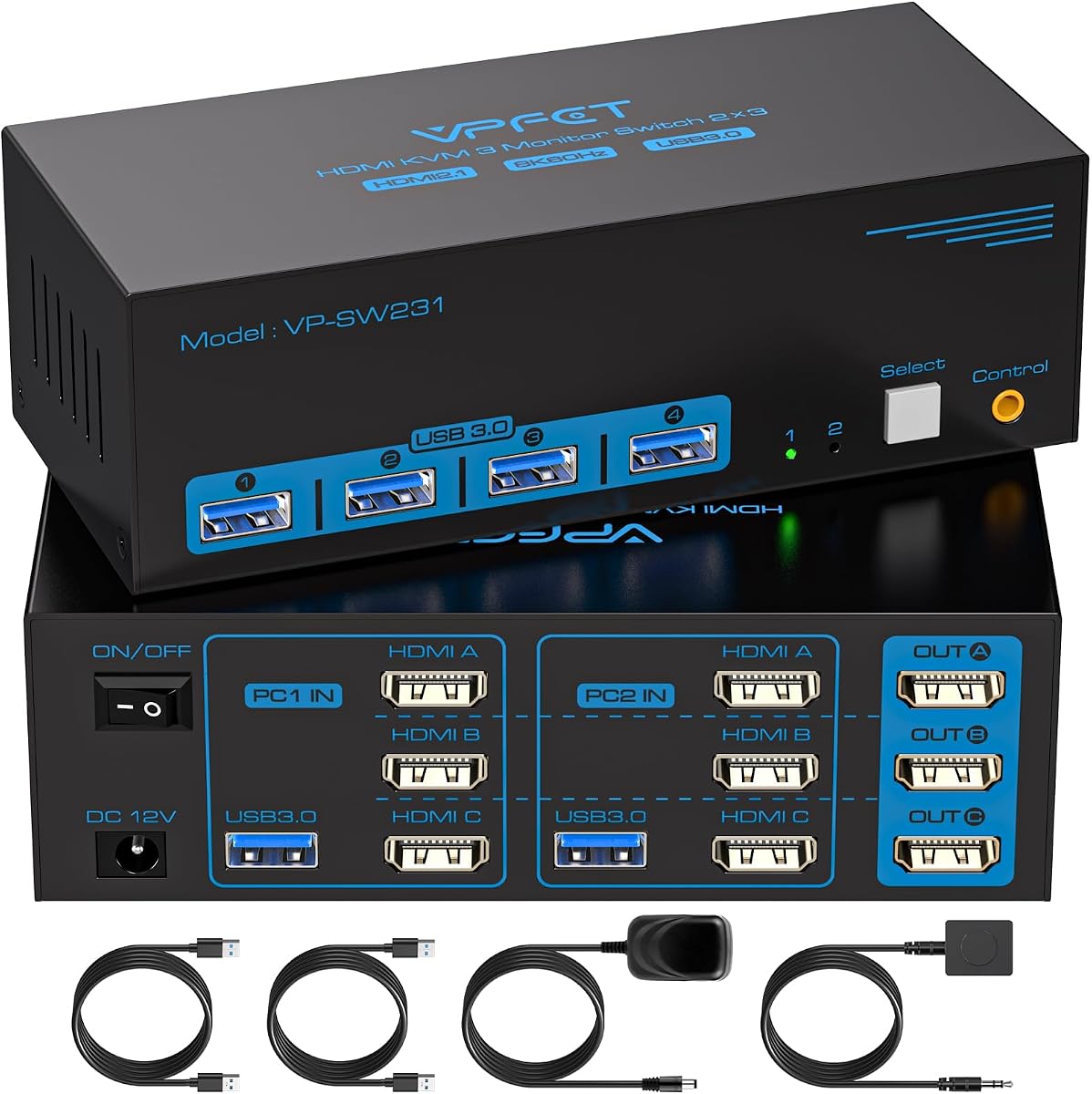

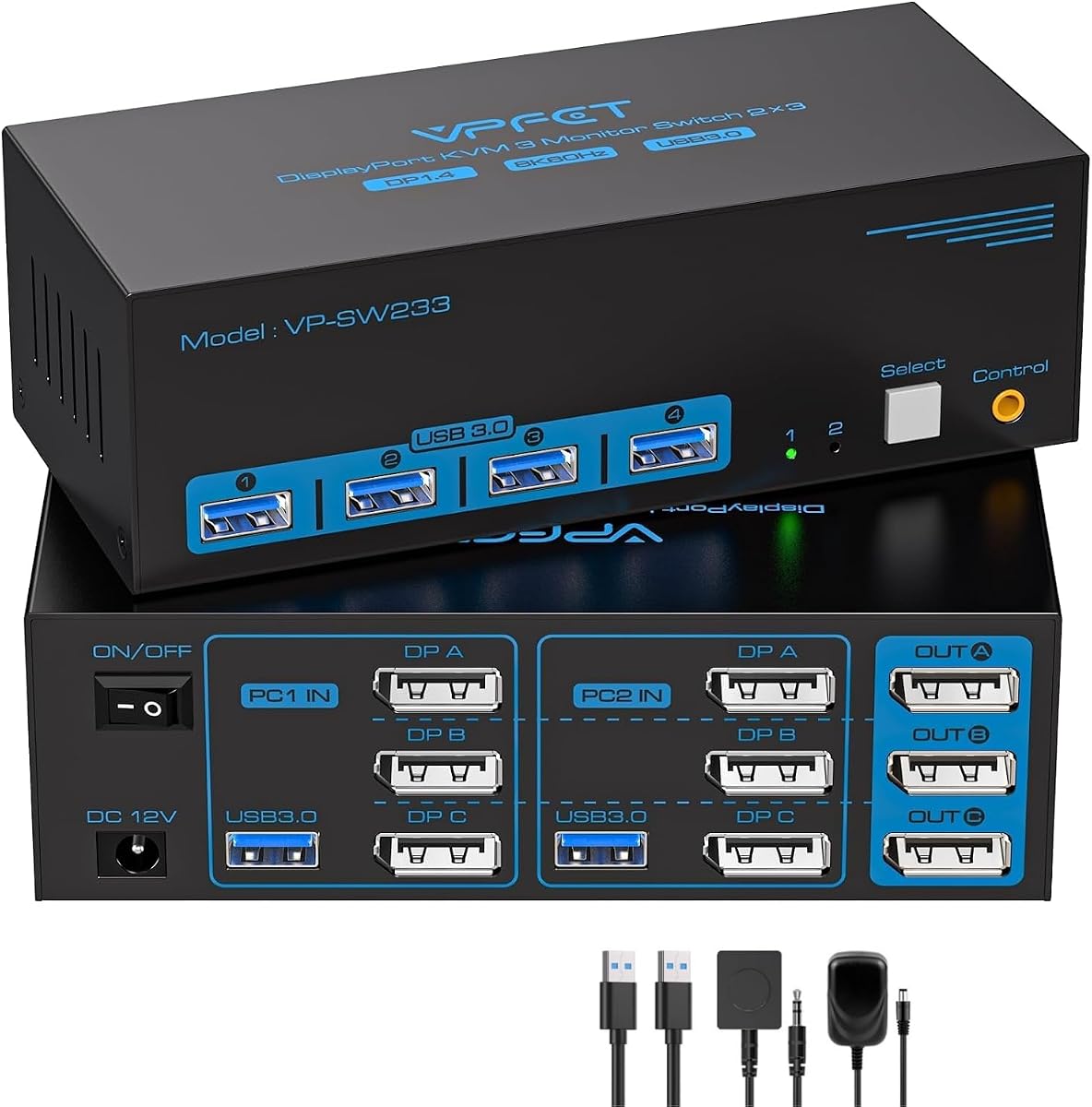

This HDMI-focused KVM is built for two computers that each need to send three HDMI signals to the same monitor arrangement. It supports up to 4K at 60Hz, four shared USB 3.0 ports, and both extended and copy display modes. The product does not have a published customer rating, so its appeal rests on its clearly defined feature set rather than a visible review score.
We may earn a commission when you buy through this link, at no additional cost to you.
Its main advantage is the straightforward all-HDMI layout. Each source connects through three HDMI cables, making it a natural option for desktops equipped with multiple HDMI outputs. Four USB 3.0 ports can serve a keyboard, mouse, printer, and other peripheral, while the included external controller allows switching when the unit itself sits out of immediate reach.
The trade-off is its more conventional resolution ceiling. It does not offer the 8K capabilities or broad high-refresh-rate combinations found in several mixed DisplayPort and HDMI models. Its switching controls also do not support keyboard hotkeys, and the 4K60 maximum depends on the source device and every cable in the signal path supporting that standard.
Choose this model when you want a two-computer, three-HDMI arrangement without paying for a more advanced dock or 8K switch. It is particularly suitable for productivity desks that need shared peripherals and clean source switching without demanding ultra-high-resolution gaming performance.
Using three HDMI connections for each computer keeps cable planning intuitive. The switch also supports copy mode for duplicating the same visual across all displays, which can be useful for demonstrations or shared-status workstations.
A front-panel button and included wired extension controller provide two ways to change sources. An indicator light shows the selected computer, reducing uncertainty when both systems remain connected.
We may earn a commission when you buy through this link, at no additional cost to you.
The UGREEN model combines two DisplayPort 1.4 inputs and one HDMI 2.1 input for each of two computers. It supports mirror and extended modes, four shared USB 3.0 ports, button or desktop-controller switching, and a broad range of resolutions including 8K60 and 4K240. Its 3.9 rating reflects positive functionality alongside some compatibility limitations.
We may earn a commission when you buy through this link, at no additional cost to you.
This switch is well suited to mixed-output graphics cards. The package includes four DisplayPort cables, two HDMI cables, two USB A cables, a power adapter, a desktop controller, and a user guide, reducing the need to source basic accessories separately. Support for HDR, VRR, FreeSync, and G-Sync adds appeal for modern gaming and productivity displays.
Compatibility deserves careful attention. Both computers must support three concurrent displays, and each source needs two DisplayPort connections, one HDMI connection, and a USB link. Signal converters or docking stations can interfere with operation, while the absence of EDID emulation may cause some applications to identify the display arrangement incorrectly.
This is a strong option for a two-computer workstation where one source uses DisplayPort and another uses HDMI. It is especially appropriate for users who want high refresh rates and 8K support but do not need laptop charging, Ethernet, or the broader docking features of the AV Access alternatives.
The mix of DisplayPort 1.4 and HDMI 2.1 makes this switch adaptable to different graphics hardware. Maximum performance still depends on the source, monitor, cables, and operating-system configuration working together.
The extensive cable package is useful for initial setup. Users should still verify that their computers have the required port mix before installation, because a missing connector cannot be replaced by the switch itself.
We may earn a commission when you buy through this link, at no additional cost to you.
The AV Access B23 is more than a basic video switch. It combines a two-source KVM, triple-display control, USB hub, network interface, audio connection, SD card reader, and 100W laptop charging in one enclosure. With a 4.9 rating, it is the strongest all-around choice for a desk combining one USB-C laptop and one desktop computer.
We may earn a commission when you buy through this link, at no additional cost to you.
A single full-featured USB-C cable can carry laptop video, data, and power, helping reduce desk clutter. The desktop connection supports up to 8K60 or 4K165, while the USB-C laptop path supports up to 4K60, 1440p165, or 1080p240. Two USB-A 3.2 ports and one USB-C 3.2 port provide 10Gbps transfer, with three additional 5Gbps USB-A ports for everyday devices.
The central limitation is laptop-platform compatibility. Compatible Windows USB-C laptops can use MST for extended multi-monitor output, but MacBooks are limited to mirrored displays and cannot present independent extended content across multiple external screens. HDMI and DisplayPort cables are also excluded from this version, so appropriate video cables must be provided separately.
Pick the B23 when you want one device to replace a separate dock, KVM, card reader, and possibly some desk adapters. Its integrated charging, active shared Ethernet, and broad USB connectivity make it especially valuable for hybrid workers, developers, traders, and creators who move frequently between a laptop and desktop.
Power, video, and data can travel over a compatible USB-C connection. This is particularly useful when the laptop is the source used most often and the display arrangement changes between docked and undocked use.
The shared 1Gb Ethernet connection remains active on both computers. Background downloads, synchronization, updates, and remote-access tasks can continue on the system that is not currently being controlled.
We may earn a commission when you buy through this link, at no additional cost to you.
This AOOCOO switch expands the traditional two-computer format to four desktops sharing three monitors and four USB 3.0 ports. It uses two DisplayPort 1.4 and one HDMI 2.1 connection per computer, supports extended and copy modes, and can reach 8K60 over HDMI or 4K144 over DisplayPort. Its 4.5 rating reflects a versatile and practical feature set.
We may earn a commission when you buy through this link, at no additional cost to you.
Four-computer support is useful in IT environments, shared workstations, test benches, and creative desks where several systems must remain connected. Users can switch through the panel button or the included wired remote, while the package supplies four USB 3.0 cables, a controller, a manual, and a 12V power adapter.
Every computer must support three concurrent displays, which creates a substantial port requirement. The instructions specifically call for two DisplayPort and one HDMI connection per source, and systems using both integrated graphics and a discrete graphics card may need all three outputs supplied by the discrete card. Shorter, appropriate-quality cables are preferable for stable high-bandwidth signals.
This is the most versatile choice for a multi-PC office that still wants a conventional KVM rather than a laptop-focused dock. It is a good match for administrators or power users who routinely move between several desktop systems and want one keyboard, one mouse, and one monitor group to remain in place.
The four-source capacity removes the need to rearrange cables whenever a different desktop is used. All sources can remain connected, although only the selected computer becomes active with the shared displays and peripherals.
The HDMI path can handle 8K60 and 4K120, while DisplayPort supports 8K30 and 4K144. Match the physical output type to the desired resolution and refresh-rate combination on each monitor.
We may earn a commission when you buy through this link, at no additional cost to you.
This two-source KVM is designed for three displays connected through a combination of two DisplayPort outputs and one HDMI output. It supports up to 8K30 or 4K144 over DisplayPort and up to 8K60 or 4K120 over HDMI. Its 4.3 rating makes it a balanced option for users who need broad device compatibility and flexible source types.
We may earn a commission when you buy through this link, at no additional cost to you.
The switch lists compatibility with laptops, desktops, PS4, Raspberry Pi, DVRs, Windows, Mac OS, Chrome OS, and Linux. That range makes it useful in home offices, multimedia classrooms, meeting rooms, and gaming setups where the computers may change. A physical button and 1.5-meter wired switching control provide convenient access from different positions around a desk.
Its 12V power connection supports high-power USB equipment, and the separate power button can be useful when the switch needs to re-recognize a signal. However, the DisplayPort branch does not reach 8K60, so users should pay close attention to which connector serves each display. Only active DisplayPort-to-HDMI adapters are recommended.
Choose this model for a conventional mixed-port setup with broad operating-system and device support. It is especially useful where the second source might be a laptop, mini PC, media device, or single-board computer rather than another full desktop.
The stated device and operating-system compatibility makes this switch more adaptable than a model designed only around desktop graphics cards. Cable and adapter requirements still vary by source.
A dedicated 12V supply can support more demanding USB accessories. The independent power control also offers a straightforward way to restart signal detection without unplugging every cable.
We may earn a commission when you buy through this link, at no additional cost to you.
The AV Access 8K KVM docking station combines a laptop and desktop in a three-display arrangement while adding network, audio, card-reader, and high-speed USB functions. The desktop path supports up to 8K60, 4K165, or very high 1080p refresh rates, while the USB-C laptop path supports up to 4K60, 1440p165, or 1080p240. Its customer rating is 4.2.
We may earn a commission when you buy through this link, at no additional cost to you.
The USB-C connection can handle display output, data, and up to 100W of charging. Two USB-A 3.2 ports and one USB-C 3.2 port operate at up to 10Gbps, while three additional USB-A ports provide 5Gbps connections. A built-in SDXC reader and 3.5mm headset jack further reduce the need for separate accessories.
Platform limitations are the most important consideration. Compatible Windows USB-C laptops can use MST for extended multi-monitor operation, but MacBooks support mirrored output only. The source must also support USB-C video, and both computers retain active use of the shared 1Gb Ethernet connection even when switching control.
This dock is well suited to hybrid work setups where one machine is a gaming desktop and the other is a laptop. It offers more integrated connectivity than a simple KVM, although buyers whose needs are limited to permanent desktops may find a conventional video switch more straightforward.
The combination of charging, networking, card access, audio, and USB reduces desk clutter. It is a practical way to standardize a laptop-and-desktop workspace around one central connection point.
The desktop source can support unusually high 1080p refresh rates alongside 8K60 and 4K165. Real-world output remains constrained by the graphics card, monitor, cables, and selected operating-system mode.
We may earn a commission when you buy through this link, at no additional cost to you.
This model is a pure-HDMI option for two computers sharing three displays and four USB 3.0 ports. It supports up to 8K60 or 4K120, along with lower resolutions and 3D compatibility, and offers both extended and duplicate display modes. Its 4.2 rating indicates a capable design for users whose computers already have ample HDMI connectivity.
We may earn a commission when you buy through this link, at no additional cost to you.
The switch is driver-free and works without dedicated software. A front Select button handles direct source changes, while the wired controller allows the enclosure to be positioned away from the main work area. Four shared USB ports can accommodate a keyboard, mouse, printer, scanner, flash drive, and other compatible accessories.
Its main limitation is the absence of DisplayPort. The source computers must each provide the required HDMI outputs and support three displays at the same time. Maximum 8K60 also depends on the HDMI source, monitor, and cable supporting the format, so an older graphics card may operate only at lower resolutions.
Choose this switch when all three monitors use HDMI and you want a simple, high-resolution two-computer controller. It avoids the port-matching complexity of mixed DisplayPort and HDMI designs, making it a practical option for office and productivity systems with suitable HDMI graphics output.
Using HDMI for every display keeps the connection plan consistent. That simplicity can reduce setup errors and makes the model appealing to users who prefer not to juggle different video standards.
The panel button is useful during initial setup, while the wired controller is convenient for a mounted or tucked-away switch. Either method changes the selected computer without unplugging display cables.
We may earn a commission when you buy through this link, at no additional cost to you.
This AOOCOO KVM allows three computers to share three monitors through two DisplayPort and one HDMI connection per source. It supports resolutions up to 8K60 and 4K144, extended and duplicate display arrangements, four USB 3.0 ports, and switching through either a panel button or wired remote. Its 4.1 rating reflects solid functionality for a three-source configuration.
We may earn a commission when you buy through this link, at no additional cost to you.
The package includes three USB 3.0 cables, a wired remote, a user manual, and a 12V power adapter. Two colored indicator lights identify the active source, helping users understand which computer currently controls the shared display group. The design is driver-free and intended for straightforward plug-and-play operation.
As with other mixed-port models, every computer must support three concurrent displays and provide two DisplayPort outputs plus one HDMI output. Keyboard and mouse recognition also depends on connecting the USB input for each source. The switch does not add laptop charging, Ethernet, or card-reader functions, so those requirements would need separate hardware.
This is a sensible middle ground between two- and four-source models. It suits a shared office or creative desk with three systems that need access to the same monitors and peripherals without adding the complexity and expense of a full docking station.
Three inputs provide more flexibility than a standard dual-computer KVM without requiring the port count of a four-system model. It is useful for offices that rotate among several desktops.
The colored indicators make the selected computer easy to identify. This matters when several systems remain connected and a user needs to switch quickly during troubleshooting or routine work.
We may earn a commission when you buy through this link, at no additional cost to you.
This switch is tailored to two systems with three DisplayPort outputs each. It supports up to 4K144 for smooth, detailed visuals and can also accommodate 8K60 according to the product specifications. It shares a keyboard, mouse, and other USB devices through 5Gbps USB 3.0 connectivity and has a customer rating of 4.4.
We may earn a commission when you buy through this link, at no additional cost to you.
An all-DisplayPort design can be advantageous for modern graphics cards and high-refresh monitors, especially in professional editing, design, and gaming environments. The included wired controller supports quick one-button switching, while the plug-and-play approach reduces software setup. The focus is narrow, but that focus can produce a cleaner installation for compatible hardware.
The important requirement is significant: each computer needs three DisplayPort outputs to run all three screens. Users with a mix of HDMI and DisplayPort will need another model, and adapters may introduce stability or resolution limitations. The specification does not describe a separate network, charging, or card-reading function.
Choose this product for a two-computer workstation built entirely around DisplayPort, particularly when high refresh rates matter. It is a better fit than a mixed-port switch when every source has ample DisplayPort connectivity and there is no need for laptop docking extras.
Using the same standard across all three displays simplifies cable organization for compatible workstations. It also avoids the output-matching concern associated with switches that mix HDMI and DisplayPort.
The 4K144 target benefits motion-heavy and detailed work. Source hardware, monitor specifications, cable quality, and graphics-card bandwidth still determine whether that maximum is reached.
We may earn a commission when you buy through this link, at no additional cost to you.
This two-computer KVM is a well-rounded mixed-port option with a strong 4.6 customer rating. It shares three displays, four USB 3.0 ports, and standard peripherals between two systems. Each computer connects through two DisplayPort and one HDMI output, with support for 8K60, 4K144, extended mode, and mirrored operation.
We may earn a commission when you buy through this link, at no additional cost to you.
The package is notably complete, including one HDMI 2.1 cable, two DP 1.4 cables, two USB 3.0 cables, a wired remote, a user manual, and a 12V power adapter. A panel button and remote controller offer two switching methods, while an LED indicator identifies the active computer. The switch supports Windows, macOS, and Linux.
There are still important setup requirements. Both computers must support three screens, and each source needs all three video cables plus its USB connection. Signal converters or docking stations may cause compatibility problems, while the lack of EDID emulation can limit how reliably some applications recognize the display arrangement.
For most two-computer, three-display users, this offers an effective combination of resolution, accessories, and straightforward operation. Choose it when the source hardware provides the required port mix and the absence of EDID emulation is not a concern.
The included video, USB, remote, and power accessories cover the essential parts of installation. This reduces setup friction and makes the switch more convenient than a barebones enclosure.
Up to 8K60 and 4K144 support accommodates demanding productivity and gaming environments. Match the desired mode to the correct connector because HDMI and DisplayPort can offer different maximum refresh rates.
We may earn a commission when you buy through this link, at no additional cost to you.
A useful triple-monitor KVM should match your computers' physical outputs, monitor capabilities, and peripheral needs. Review connectivity, resolution, display modes, and source-switching requirements before choosing a model.
Start with the number of systems you need to control. Most triple-monitor KVMs serve two computers, while the options in this guide also include three-computer and four-computer models. A display count alone does not guarantee that every source can drive all three screens, so each computer must independently support three concurrent outputs. A desktop with two DisplayPort and one HDMI connection may need the corresponding port mix on every switch it connects to.
Mixed DisplayPort and HDMI designs are versatile because they accommodate different graphics outputs, but they require more careful cable planning. All-HDMI switches are simpler when every source has three HDMI ports, while an all-DisplayPort design can be ideal for high-refresh monitor setups. The physical connector on the computer matters: the switch does not create additional graphics outputs or make an incompatible computer triple-screen capable.
Headline resolution claims are only the starting point. The source graphics card, operating system, monitor, connection type, and cable must all support the desired resolution and refresh rate. Several switches offer 8K60 through HDMI while limiting DisplayPort to 8K30, and some models reach 4K144 or 4K240. For mixed-display workspaces, test the most demanding combination rather than assuming every output can operate at the maximum specification.
Extended mode lets each screen carry different content, making it the normal choice for productivity. Copy or mirror mode repeats the same image across displays and can be useful for presentations, status dashboards, or specialized workflows. A computer that supports only one or two screens will not automatically gain missing outputs through the KVM. Confirm that the operating system and graphics driver permit the intended three-monitor arrangement.
Look for enough shared USB ports for your keyboard, mouse, printer, webcam, storage, and any other accessories. Four USB 3.0 ports are common in this category, and backward compatibility allows many USB 2.0 devices to work. The USB input from every source must be connected, or shared keyboards and mice may not be recognized. Higher-speed docking models can add 10Gbps ports, card readers, and dedicated charging.
A front-panel button is fast and dependable, while a wired remote is better when the switch is mounted under a desk or positioned away from the keyboard. Some products also use indicator lights or keyboard shortcuts, although hotkey support is not universal. Choose a method you can reach comfortably and test it after all displays and peripherals are connected.
A conventional KVM concentrates on display switching and shared USB devices. A KVM docking station adds features such as USB-C video, laptop charging, Ethernet, audio, and card access. The docking approach is valuable for a hybrid laptop-and-desktop desk, but it introduces laptop compatibility questions. MacBook systems may support mirrored multi-monitor output rather than independent extended screens, so check the exact platform requirements.
A power adapter can improve stability when the switch drives high-power USB devices. Cable length also matters at high resolutions and refresh rates, with shorter cables generally easier to keep stable. Some products include most required cables, while others require separate display connections. Look for a clear indicator of the selected source, and avoid relying on signal converters or docks unless the manufacturer confirms compatibility.
Before connecting anything, inspect the switch, power adapter, and cables for visible damage. Identify the required inputs for each computer: the relevant DisplayPort and HDMI outputs, a USB host connection for shared peripherals, and the switch's power input. Connect the monitors to the switch's output ports before attaching computer inputs, reducing the chance of confusing source and display cables.
Power on the switch and each computer, then allow the operating system to detect the displays. Open the system's display settings and choose extended mode if separate content is required, or copy mode if the same image should appear on every screen. Arrange the outputs in the desired physical order, select the correct resolution and refresh rate for each monitor, and verify that the image is stable before reconnecting peripherals.
Use the panel button or included wired remote to change the active computer. After switching, allow the operating system to reapply the correct display layout if necessary. Keep the enclosure ventilated, avoid placing it under heavy stacked equipment, and route cables without creating strain on the connectors. If a display fails after a cable or source change, reseat the connection, test the display directly, and use the switch's power control or adapter as directed by its manual.
No. A KVM routes existing display signals but does not add graphics-processing capability to a computer. Both source systems must independently support three concurrent displays, and each must provide enough compatible video outputs. Confirm the computer's specifications and graphics-card connections before purchasing a triple-monitor switch.
Extended mode sends different content to each display, allowing windows and applications to be spread across the full workspace. Copy mode sends the same image to every connected monitor. Extended mode is most useful for productivity, while copy mode can help with presentations, shared dashboards, or a duplicated visual arrangement.
You need cables capable of carrying the resolution and refresh rate you intend to use. For 8K60 or 4K120 over HDMI, a suitable HDMI 2.1 cable is important; for 4K144 over DisplayPort, use a suitable DisplayPort 1.4 cable. Product listings often include some cables, but buyers should verify the connector count and specifications.
It depends on the switch and the MacBook's USB-C capabilities. The AV Access docking options support mirrored multi-monitor output on MacBooks but do not provide independent extended content across multiple external displays. Windows laptops with compatible USB-C video output can use MST for extended multi-monitor operation. Check the operating system, port, and cable requirements carefully.
The USB host input for each computer usually must be connected to the switch in addition to the video cables. Try the peripherals directly on the computer, reconnect the USB input, and make sure the correct source is selected. If compatibility remains uncertain, test with a basic keyboard and mouse before adding storage or other devices.
Yes, if the model has enough source inputs and your computers support the shared monitor configuration. This guide includes three- and four-computer switches, each designed to share three displays and shared USB devices. Each additional source still needs its own complete set of video and USB connections.
Many triple-monitor KVMs include a 12-volt adapter and should be used with it, especially when powering demanding USB accessories. A stable external supply can also improve operation during signal detection or high-bandwidth transfers. Follow the product instructions, and do not substitute an incompatible power adapter.
A switch can pass compatible features through to the displays, but it does not create them. Some models explicitly list support for VRR, FreeSync, and G-Sync, while others do not. Your graphics card, monitor, cables, source system, and selected resolution must all support the feature you want to use.
The AV Access B23 is the standout premium option because it combines triple-display control with 100W USB-C charging, active shared Ethernet, card reading, and 10Gbps USB. The AOOCOO four-computer model stands out for conventional multi-PC flexibility, while the all-HDMI switch offers a simpler path for two computers already equipped with three HDMI outputs.
For most dual-computer desks, the mixed-port models provide the strongest balance of display capability and convenience. Choose based first on your actual outputs, then confirm the desired resolution and refresh rate for each connector. Ensure the switch includes any docking, network, charging, or additional-source features your workflow genuinely requires rather than paying for complexity you will not use.
Finally, review the current listing before ordering because included cables, firmware details, package contents, and prices can change. The specifications in this guide are intended to make comparison easier, but your computer, monitor, and cable requirements remain the final authority on compatibility.