
Canon PIXMA TR7120
4.2Editor score
Dual-band wireless connectivity
Automatic duplex printing
Automatic document feeder
Color scanning and copying
Choosing a printer for Linux is more complicated than choosing one for Windows or macOS because driver availability, proprietary print utilities, and wireless setup can vary considerably between models. A useful Linux printer should provide a dependable CUPS workflow, practical connection options, and enough flexibility for documents, photos, or shipping labels.
This guide compares ten printers across Linux compatibility, USB and wireless support, print quality, scanning, copying, document handling, and specialized label functions. It includes general-purpose inkjets, ink-tank models, and thermal label printers, with particular attention to the operating systems and printing methods each product explicitly supports.
Each selection shows why the model may fit a particular Linux workflow and where its limitations matter. The rankings balance the supplied feature information and customer ratings rather than claiming hands-on testing. Product availability, included accessories, ink arrangements, and prices can change, so confirm the current listing and Linux support before purchasing.
4.2Editor score

4.4Editor score

3.9Editor score
As an Amazon Associate we earn from qualifying purchases.
The comparison below highlights each printer's most relevant Linux-related capabilities, including connection methods, document features, and intended use. Exact Linux support varies by model, with USB compatibility being more clearly documented for several thermal label printers than for the general-purpose inkjets.





The Canon PIXMA TS6520 combines a compact color inkjet with the everyday features most Linux users need from a home-office printer. Its 4.2 rating reflects a generally positive customer reception, while the included OLED display, automatic duplexing, scanning, and copying make it more versatile than a basic single-function model. The result is a strong general-purpose choice for documents, reports, and photos.
We may earn a commission when you buy through this link, at no additional cost to you.
Its two-cartridge hybrid ink system is described as producing sharp text and vivid color, while supported media includes bordered and borderless output up to 8.5 by 11 inches. Automatic two-sided printing reduces paper use, and the integrated scanner handles everyday copying and scanning. Dual-band Wi-Fi at 2.4GHz or 5GHz offers more flexibility than a printer limited to one band, and Canon PRINT, AirPrint, and Mopria support add useful mobile options.
The principal uncertainty is explicit Linux support. The product information does not name Linux among the listed desktop or mobile services, so compatibility may depend on the available CUPS driver, wireless discovery tools, and the user's distribution. It is also a cartridge-based model rather than an ink-tank system, which may be less economical for very high page volumes. Even so, its feature set makes it more versatile than a highly specialized label printer.
Choose the TS6520 if you want one machine to cover color documents, photos, duplex printing, copying, and scanning in a compact format. It is a particularly sensible option for a Linux household or office that values wireless flexibility and a physical status screen. Before installing it, verify the current model-specific Linux driver and connection method to avoid surprises.
Printing, scanning, and copying are covered in one compact unit, eliminating the need for separate devices. The OLED screen provides a quick way to check ink and status, while automatic duplexing makes longer reports easier to produce.
Dual-band Wi-Fi can be valuable in crowded networks because it supports both 2.4GHz and 5GHz bands. Mobile printing through Canon PRINT, AirPrint, and Mopria is another advantage, although Linux users should verify driver availability directly.
We may earn a commission when you buy through this link, at no additional cost to you.
The JADENS Bluetooth Thermal Label Printer is the clearest Linux-compatible choice in this roundup because its product information explicitly states that Windows, Mac, ChromeOS, and Linux systems can connect through USB. It is not a conventional page printer; instead, it targets labels used for shipping, inventory, and small-business organization. Its 4.4 rating is the highest among the listed products.
We may earn a commission when you buy through this link, at no additional cost to you.
The printer uses direct thermal technology, so it does not require ink or toner. It accepts labels from 1.57 to 4.1 inches wide and integrates with major sales platforms and couriers, including Shopify, Etsy, UPS, and FedEx. A built-in paper tray keeps rolls or compatible labels organized, while Bluetooth and USB connections offer flexibility for different workstations.
Linux support is specifically tied to USB, not Bluetooth, and that distinction matters. The mobile workflow uses the Jadens Printer app for iOS and Android, but desktop Linux users will need to configure the USB connection and an appropriate driver or print workflow. The product's narrow format and label focus also make it unsuitable for printing standard documents or photographs.
This is a strong recommendation for a Linux-based small business that regularly produces shipping or inventory labels. Its explicit platform support and feature-rich label handling remove much of the uncertainty associated with buying a specialized printer for Linux. Choose it for labels, and use a general-purpose inkjet for ordinary pages.
The stated Linux compatibility is the most important reason to shortlist this model. Connecting by USB also avoids uncertainty about wireless discovery and proprietary Bluetooth behavior on a Linux desktop.
Direct thermal printing eliminates ink and toner, and the supported width range covers many common shipping labels. Integration with popular commerce and courier services makes the printer more relevant to active sellers and fulfillment teams.
We may earn a commission when you buy through this link, at no additional cost to you.
The HP OfficeJet Pro 8125 is designed for home offices that need more than basic color printing. It combines print, scan, copy, automatic duplexing, and an automatic document feeder, while reaching speeds of up to 20 pages per minute in black and 10 pages per minute in color. Its 3.9 rating reflects a capable feature set alongside some real-world compromises.
We may earn a commission when you buy through this link, at no additional cost to you.
A large 2.7-inch color touchscreen makes local operation more approachable than a tiny status display. The 225-sheet input tray is practical for regular document work, and the ADF reduces the effort involved in scanning or copying multi-page sets. HP AI is included for cleaning up web pages and emails before printing, while dual-band Wi-Fi and the HP app expand placement and control options.
Two product details deserve careful consideration. First, the included Instant Ink trial becomes a paid monthly subscription unless canceled, and the printer is designed to work only with cartridges containing original HP chips or circuitry. Second, although the product information discusses HP applications and wireless features, it does not explicitly confirm Linux support. Linux users should look for an appropriate CUPS driver and verify mobile app behavior is unnecessary before setup.
The OfficeJet Pro 8125 is best for a home office that values speed, a touchscreen, an ADF, and duplex output more than cartridge flexibility. It can serve Linux users through a conventional print workflow if driver support is available, but it is not the safest selection based solely on supplied platform information. Check Linux compatibility and cartridge terms before purchasing.
The combination of a 225-sheet tray, automatic duplexing, and an ADF supports recurring document workloads. Fast black-and-color output and a large touchscreen make the model easier to manage for users who print more than occasional pages.
The HP app supports printing, scanning, copying, and faxing from a phone, and HP AI helps improve web-page layouts. The included trial transitions to a monthly service unless canceled, while cartridge-chip restrictions may affect replacement options.
We may earn a commission when you buy through this link, at no additional cost to you.
The Canon PIXMA TS4320 is a compact, budget-oriented color all-in-one with features that extend beyond basic printing. It can print, copy, and scan, supports automatic duplex printing, and handles bordered or borderless media up to 8.5 by 11 inches. Its 3.9 rating places it among the more highly rated products in the group while keeping its role focused on everyday home use.
We may earn a commission when you buy through this link, at no additional cost to you.
A two-cartridge hybrid ink system is described as delivering sharp text and vivid colors, making the model suitable for schoolwork, household documents, reports, and photos. Dual-band Wi-Fi supports both 2.4GHz and 5GHz networks, and Canon PRINT, AirPrint, and Mopria provide mobile printing paths. Its EPEAT Silver and ENERGY STAR certifications also appeal to buyers seeking a more energy-conscious setup.
The main limitation is the lack of an automatic document feeder, so multi-page scans and copies need more manual page handling. As with the TS6520, the supplied information does not explicitly list Linux compatibility. This means the printer may work through CUPS and a suitable driver, but the exact experience can depend on the Linux distribution, wireless setup utility, and chosen connection method.
The TS4320 is a compelling budget choice for users who want affordable color output, duplex printing, and scanning without paying for a larger office model. It is best for modest page volumes and mixed home-document use. Confirm Linux driver support first, and choose a model with an ADF if regular multi-page workflows are a priority.
The TS4320 combines scanning, copying, color printing, and automatic duplexing without taking on the physical size of a full office printer. That balance works well for students, remote workers, and households with limited desk space.
EPEAT Silver and ENERGY STAR certification make this a consideration for environmentally conscious buyers. Borderless printing and mobile services also extend its usefulness beyond basic text documents.
We may earn a commission when you buy through this link, at no additional cost to you.
The Rongta RP420 is a fast thermal label printer aimed at e-commerce sellers and package fulfillment. It has a 4.2 rating and stands out for a stated printing speed of 150 millimeters per second, with capacity for up to 72 four-by-six labels per minute. Its 203 DPI resolution is intended to keep barcodes and text clear.
We may earn a commission when you buy through this link, at no additional cost to you.
The printer supports roll and fanfold thermal labels from 1.54 to 4.1 inches wide, including common four-by-six, three-by-two, three-by-one, and two-by-one formats. It can be operated from iPhone, iPad, Android phones, Android tablets, Mac, and Windows systems, and the RONGTA application provides a mobile editing workflow. A USB disk contains a driver, instructional videos, and troubleshooting material.
Linux compatibility is a major and explicit limitation: the product information specifically says the RP420 does not support Linux or Chrome OS. The stated desktop connection path also relies on USB rather than Bluetooth. While a Linux system might discover a device through USB in some circumstances, the supplier's own support statement prevents this model from being recommended as a dependable Linux choice.
The RP420 may be a compelling option for a non-Linux e-commerce workflow because of its speed, label flexibility, and mobile application. It handles both roll and fanfold media, and its ink-free design simplifies operation. For Linux users, however, one of the explicitly compatible label printers in this roundup is the more defensible purchase.
A stated speed of 150 millimeters per second and capacity for 72 four-by-six labels per minute target active shipping workflows. The 203 DPI format supports clear barcodes and compact label text.
The supplier explicitly lists Linux and Chrome OS as unsupported, making this a poor recommendation for the keyword. Its Bluetooth workflow is designed for phones and tablets, while laptop printing depends on a USB driver.
We may earn a commission when you buy through this link, at no additional cost to you.
This Bluetooth Thermal Shipping Label Printer is one of the strongest Linux-oriented choices because its product information explicitly states compatibility with Linux and Chrome OS over USB. It also has a strong 4.4 rating and targets the needs of small businesses that print shipping labels continuously. Unlike a general-purpose inkjet, it is built specifically for compact label media.
We may earn a commission when you buy through this link, at no additional cost to you.
Direct thermal technology produces up to 72 four-by-six labels per minute at 150 millimeters per second and does not require ink or toner. The adjustable guide accepts roll and fanfold labels from 1.54 to 4.1 inches wide. Integration is listed with Amazon, Shopify, USPS, UPS, and ShipStation, while Bluetooth supports iOS, Android, Windows, and macOS, including Apple M1 and M2 systems.
Linux users should use the documented USB connection rather than assume that every Linux Bluetooth stack will behave like the listed mobile and desktop systems. The Label Expert app is the named control utility for Bluetooth workflows, while USB provides the more straightforward cross-platform route. The printer's label width and lack of standard-paper support are appropriate for fulfillment, but unsuitable for conventional office documents.
This model is a strong fit for Linux-based sellers, warehouse operators, and home businesses producing high volumes of shipping labels. Its explicit Linux support, 203 DPI output, platform integrations, and two-year warranty create a persuasive package. It is the pick to consider when labels—not full-size pages—are the primary requirement.
The combination of 150 mm/s speed, direct thermal technology, and support for up to 72 four-by-six labels per minute targets continuous fulfillment work. A stable USB path is also valuable when reliability matters more than wireless convenience.
Amazon, Shopify, USPS, UPS, and ShipStation support makes the printer relevant to common small-business systems. Adjustable label guides support common shipping sizes, product barcodes, and compact product tags.
We may earn a commission when you buy through this link, at no additional cost to you.
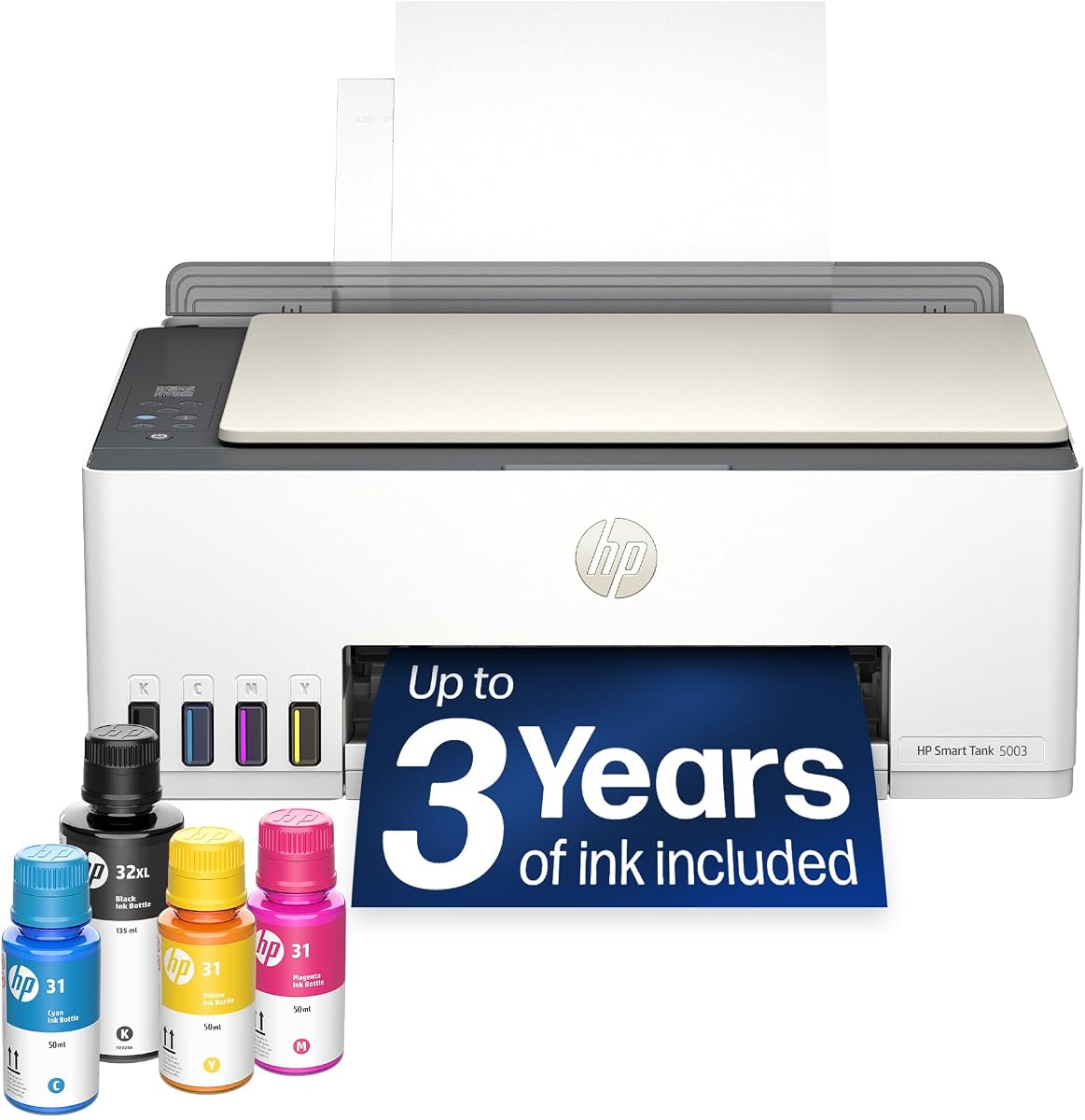
The HP Smart Tank 5003 is built for users who print frequently and want to reduce the recurring cost and inconvenience of conventional cartridges. Its 3.9 rating reflects a product centered on economical, high-volume color and black output. The supplied information says it can include up to three years of ink and as many as 6,000 color or black pages right out of the box.
We may earn a commission when you buy through this link, at no additional cost to you.
The cartridge-free ink tank uses a mess-free refill system in which ink bottles are plugged into the tank and allowed to drain. That process is simpler and cleaner than handling squeeze bottles. The printer also performs copying and scanning, supports borderless output, and provides mobile and wireless printing for flexible placement around a home or office.
Its supplied information does not explicitly confirm Linux support. While ink-tank printers are often manageable through CUPS, that should not be treated as a guarantee for this exact model. The listing also does not mention automatic duplex printing, so users who regularly need two-sided documents should verify that feature before buying. The included ink quantity is attractive, but actual page yield varies with use and printing conditions.
The Smart Tank 5003 is most appropriate for a Linux user with a reasonably high page volume who values refill convenience over advanced office features. Its wireless capability and broad included ink supply also make it appealing for shared family workspaces. Confirm current Linux driver support and whether automatic duplexing is available on the exact configuration being purchased.
The ink-tank approach is built around consistent, economical output rather than frequent cartridge replacement. A large included supply and bottle-based refills make it practical for schools, home offices, and regular document users.
Printing, copying, scanning, borderless output, and wireless controls cover the basics. Because automatic duplexing is not mentioned in the supplied features, two-sided workflows require confirmation before purchase.
We may earn a commission when you buy through this link, at no additional cost to you.
The Canon PIXMA TR7120 is the most fully equipped general-purpose Canon in the roundup. It combines color printing, copying, scanning, automatic duplexing, and an automatic document feeder in a compact home-office design. Its 4.2 rating and broader feature set justify considering it when scanning and multi-page document handling are as important as printing.
We may earn a commission when you buy through this link, at no additional cost to you.
The ADF allows multi-page documents to be scanned or copied without manually feeding every sheet, while automatic two-sided printing reduces paper consumption. A 1.42-inch monochrome OLED display provides quick access to ink levels, status, and settings. The hybrid two-cartridge system is described as delivering sharp text and vivid color, and media can be printed with or without borders up to 8.5 by 11 inches.
Wireless connectivity covers both 2.4GHz and 5GHz bands, and Canon PRINT, AirPrint, and Mopria support mobile printing. As with the other Canon inkjets in the list, explicit Linux support is not stated in the product information. The model may be manageable through CUPS and an available driver, but verifying that before installation is essential. Its conventional cartridges also make it less economical than an ink tank for sustained high-volume use.
The TR7120 is a strong choice for a Linux home office that needs a full set of document functions without moving to a larger enterprise printer. Choose it over the TS4320 when the ADF and more advanced control panel are important. If your workload is extremely high, compare its cartridge costs with the HP Smart Tank before deciding.
The automatic document feeder and duplex printer handle the two tasks that most often slow down a home office. Color, monochrome, copying, and scanning are all integrated into one unit.
Compared with the TS4320, the TR7120 adds an ADF, an OLED display, and a more office-oriented feature set. Those differences matter for users who routinely process multi-page paper.
We may earn a commission when you buy through this link, at no additional cost to you.
The Brother Work Smart 1360 is a compact wireless color all-in-one intended for home offices, schoolwork, documents, and reports. Its 3.8 rating is the lowest in this group, but the product information presents a capable feature set for routine use. Print, scan, and copy functions are combined with automatic duplexing and a 20-sheet ADF.
We may earn a commission when you buy through this link, at no additional cost to you.
A 1.8-inch color display provides access to cloud connections for Google Drive, Dropbox, Box, OneDrive, and other services. The Brother Mobile Connect app supports printing, copying, scanning, and device management from a mobile device, while Page Gauge helps monitor ink usage. For a wired option, USB is available alongside wireless networking, which can be useful when driver configuration is more reliable than network discovery.
Print speeds reach up to 16 pages per minute in black and nine pages per minute in color, while a 150-sheet paper tray supports normal home-office volumes. The supplied information does not explicitly identify Linux as a supported platform, so Linux compatibility should be confirmed through the current Brother driver and CUPS package relevant to the user's distribution. The 20-sheet ADF is smaller than many office models but still useful for routine batches.
The Work Smart 1360 is best for a compact Linux workspace that values wireless access, an ADF, duplex printing, and cloud-oriented applications. It may appeal to users who already have a compatible Brother setup. Confirm Linux driver availability before buying, especially if the printer will be managed primarily from a Linux-only workstation.
The 1.8-inch color screen, 20-sheet ADF, and automatic duplexing provide a useful feature set without a large footprint. USB and wireless options also let users choose a more dependable connection method when needed.
Direct access to major cloud storage services simplifies common document workflows. Brother Mobile Connect extends printing, copying, scanning, and ink monitoring to a phone.
We may earn a commission when you buy through this link, at no additional cost to you.
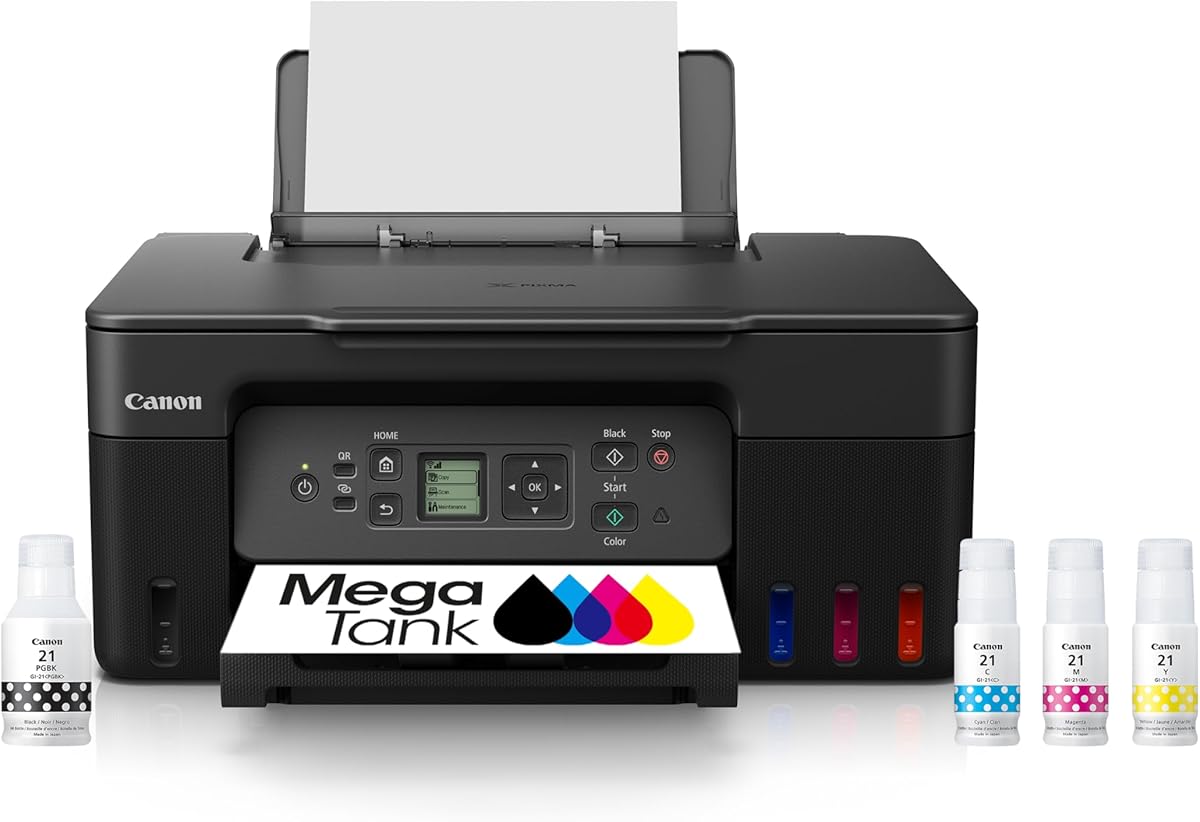
The Canon MegaTank G3270 is an ink-tank all-in-one focused on economical color and monochrome output. It has a 4.1 rating and combines wireless printing, copying, and scanning in one unit. According to the supplied information, a single set of inks can produce up to 6,000 black-and-white pages or 7,700 color pages, making it relevant to users with sustained print volumes.
We may earn a commission when you buy through this link, at no additional cost to you.
The MegaTank format reduces dependence on small conventional cartridges and is intended to lower ongoing ink costs. A 1.35-inch square LCD display provides basic control, while wireless connectivity allows flexible placement. Borderless color output and the combination of print, copy, and scan functions make it practical for reports, school projects, household documents, and occasional photos.
The clearest limitation is that the supplied specifications list single-sided printing only. Users who depend on automatic duplexing should choose the TS4320, TS6520, TR7120, OfficeJet Pro 8125, or Brother Work Smart 1360 instead. Linux support is also not explicitly stated, so buyers should confirm that a suitable CUPS driver is available before purchase.
The G3270 is most attractive to a Linux user who prints many pages and wants fewer cartridge replacements. It is a straightforward alternative to cartridge-based models when recurring ink consumption is the priority. Confirm Linux compatibility, duplexing needs, and current included-ink conditions before making a final decision.
The stated yields of up to 6,000 monochrome or 7,700 color pages per ink set indicate a printer designed for regular workloads. Its ink-tank approach can also reduce the need for frequent cartridge replacement.
Wireless connectivity, a compact LCD, and integrated copy and scan functions cover everyday needs. Single-sided-only output is the main feature gap for users who regularly print two-sided documents.
We may earn a commission when you buy through this link, at no additional cost to you.
The right Linux printer depends on your operating system details, connection method, document volume, and media type. Compatibility should be verified before focusing on speed, color quality, or convenience features.
Start by distinguishing between a product that explicitly names Linux and one that merely uses standard printer hardware. The JADENS and Bluetooth Thermal Shipping Label Printer explicitly support Linux through USB, while the Rongta RP420 explicitly does not. For inkjets that do not provide explicit platform details, check whether a current CUPS driver, filter package, or manufacturer-provided PPD file is available for the exact model.
Prefer verified Linux compatibility over assumptions based on a printer's USB or Wi-Fi standards. A standard-compliant device can still be difficult to configure if it relies on a proprietary setup utility. Review the manufacturer's Linux downloads, the current CUPS package in your distribution, and community support resources before making a final choice.
USB is usually the most predictable route for initial Linux setup, particularly for thermal label printers and compact office models. Wireless operation is convenient once configured, but discovery and driver selection can vary between distributions. Look for models that offer both USB and wireless connectivity if you want a wired fallback while retaining flexible placement.
The document requirement for an OLED display and device-management screen is less important than successful connection. If you expect to print from a Linux laptop, server, or headless workstation, prioritize a model with explicit USB support and a known print path. Bluetooth should not be assumed to behave identically across Linux systems.
Basic home users generally need color documents, copying, scanning, and wireless access, while a home office may also require an automatic document feeder and automatic duplexing. The Canon PIXMA TR7120 and Brother Work Smart 1360 include ADFs, and several Canon and Brother models support automatic two-sided printing. The Canon MegaTank G3270, by contrast, is listed as single-sided only.
For frequent high-volume output, an ink-tank model may be more economical than a conventional cartridge printer. The HP Smart Tank 5003 and Canon MegaTank G3270 are designed around larger ink supplies. For shipping work, use a dedicated thermal label printer rather than forcing label jobs through a general-purpose inkjet.
Cartridge models can be convenient for light and intermittent use, but frequent printing can make replacements costly. Ink-tank systems use refillable reservoirs and may offer better economics for sustained workloads. Thermal label printers use neither ink nor toner, but require compatible labels and are not intended for standard paper.
Consider more than the initial purchase cost. Include replacement cartridges or ink sets, label stock, print volume, and the possibility that a business may require original-chip cartridges. The HP OfficeJet Pro 8125 specifically notes its cartridge restrictions and subscription terms, making careful review of the current listing essential.
A flatbed scanner is sufficient for occasional pages, photos, and identity documents. An automatic document feeder is more valuable for multi-page reports, routine filing, and batch copying. The TR7120, OfficeJet Pro 8125, and Brother Work Smart 1360 include ADFs, with stated capacities of 20, 20, and 20 sheets respectively according to the supplied feature descriptions.
The ADF is an addition to, not a replacement for, the flatbed scanner. Users who occasionally need to scan books, fragile paper, or unusually large items still benefit from having both. A physical control display can also make local scanning and copying easier, but it should not compensate for missing Linux compatibility.
Dual-band Wi-Fi is valuable because the TS6520, TS4320, and TR7120 can operate on both 2.4GHz and 5GHz networks. The 5GHz band can reduce interference in crowded environments, while 2.4GHz may offer better reach through walls. Wireless printing is especially convenient for laptops, shared family use, and home offices where the printer cannot remain tethered to a workstation.
A wireless model should still be considered alongside its wired setup process. Linux users may need to add the printer manually in CUPS, install discovery utilities, or connect temporarily by USB. Verify both network bands, printer discovery, and the current availability of relevant drivers before installation.
General-purpose inkjets handle standard letter-size media, photos, documents, and sometimes borderless output. Shipping label printers accept much narrower rolls or fanfold media and use direct thermal technology. The JADENS supports label widths from 1.57 to 4.1 inches, while the Rongta and the Bluetooth thermal shipping model support a closely related range.
Buying the wrong category can lead to frustrating limitations. A thermal label printer cannot serve as a home document printer, and an inkjet may handle a small label awkwardly or require ink that is unnecessary for a high-volume fulfillment workflow. Decide whether you need pages, labels, or both, then choose separate devices if both are essential.
Some all-in-ones offer compelling smartphone apps, cloud services, AI-assisted page formatting, and proprietary ink management. These tools can improve convenience, but Linux users should determine which functions can be performed from the CUPS print dialog or a standard command-line workflow. A mobile app is useful for phone printing but does not necessarily help with Linux setup.
Original-chip cartridge requirements, subscription services, and vendor-specific firmware can also affect long-term ownership. Review those terms before installing a printer in a business or shared environment. The most dependable setup is one that can print locally through a supported driver even if a vendor app is unavailable.
Begin by identifying your Linux distribution and desktop environment, then check the printer manufacturer's support materials for the exact model. Install the current CUPS packages, add the printer through the system print settings, or use the distribution's printer discovery tool. USB is generally the simplest starting point for first-time setup, particularly for thermal label printers that explicitly document Linux compatibility.
For wireless printing, connect the printer temporarily by USB if supported, install the appropriate driver package or PPD file, and configure the network settings. Create separate queues only when different trays, paper types, or device modes need to be selected independently. Label printers should be tested with a representative PDF, because scaling, margins, and barcode dimensions must remain correct for scanning by couriers.
Care for the device according to its technology. Keep inkjet nozzles clean, use supported media, and avoid leaving cartridges or ink tanks exposed unnecessarily. Thermal printers need clean rollers and correctly aligned label guides, while scanners and document feeders should be kept free of dust and debris. Periodically test a page, check ink or label supplies, and update drivers when a distribution or printer firmware release improves compatibility.
The JADENS Bluetooth Thermal Label Printer and the Bluetooth Thermal Shipping Label Printer explicitly list Linux compatibility through USB. Their supplied information names Linux as a supported desktop system. The Rongta RP420 explicitly does not support Linux. For the other inkjet and ink-tank models, Linux support is not directly stated, so users should verify a current CUPS driver and model-specific setup instructions before buying.
Yes, if the printer uses standard networking and a suitable driver is available for your Linux distribution. Dual-band support on the Canon TS6520, TS4320, and TR7120 can be helpful in busy wireless environments. Wireless setup may require temporarily connecting by USB, manually adding the printer to CUPS, or installing a network discovery utility.
USB is often easier for initial configuration because it avoids wireless discovery and network-driver problems. It also provides a stable connection for label printing, where interruptions or scaling issues are especially inconvenient. Wireless is more convenient once configured, especially when multiple devices share a printer. The best approach is to use USB for setup and testing, then add wireless access if the driver supports it.
A dedicated thermal printer is usually better for regular shipping labels because it prints quickly, supports common roll and fanfold formats, and requires no ink or toner. A general-purpose inkjet can print some labels, but it may be slower, less convenient, and more expensive for a high-volume fulfillment operation. Choose the label printer for shipping and a separate inkjet if you also need ordinary documents.
Often, yes. A model with a suitable CUPS driver or PPD file can generally be configured through the Linux print dialog without the vendor's desktop utility. Vendor apps can still help with ink monitoring, firmware updates, cloud features, and mobile workflows, but they are not always required for ordinary printing. Confirm that the printer exposes a standard queue and compatible driver before purchase.
The HP Smart Tank 5003 and Canon MegaTank G3270 are the strongest ink-tank options because they are designed for larger print volumes and recurring ink supply. The Canon TR7120 is a good alternative when an ADF, automatic duplexing, and a more complete all-in-one feature set matter more than ink-tank economics. Linux support should still be verified for each exact model.
It depends on the printer's documented support and the Linux Bluetooth stack. The JADENS and Bluetooth Thermal Shipping Label Printer explicitly guarantee Linux through USB, not necessarily through Bluetooth. For dependable Linux label printing, use the supported USB route. Bluetooth may work for other systems through the vendor's mobile app, but it should not be assumed on Linux without testing.
Check for a current driver, PPD file, or CUPS package that supports the exact model. Also verify the connection method, whether duplexing and the ADF are included, and whether essential functions depend on a proprietary mobile application. If your workflow depends on scanning or label printing, test a representative job before replacing a working printer.
The JADENS Bluetooth Thermal Label Printer is the strongest dedicated Linux label option because it explicitly documents Linux over USB, supports common label widths, and includes both Bluetooth and USB connectivity. The Canon PIXMA TR7120 is the most complete general-purpose home-office choice, while the Canon PIXMA TS4320 offers a more compact and budget-conscious feature set.
Prioritize explicit platform support before print speed or extra features. General-purpose inkjets and ink tanks may work through CUPS, but their supplied information does not guarantee Linux compatibility. Dedicated thermal printers can be more suitable when labels are the main job, provided their connection method includes Linux and the printer's narrow media format fits your workflow.
Before purchasing, check the current model listing, driver availability, included accessories, ink arrangement, and warranty terms. Prices and product configurations change, and details such as Linux support can vary by hardware revision or software update. Confirming those details against your specific Linux distribution will lead to the most dependable setup.